
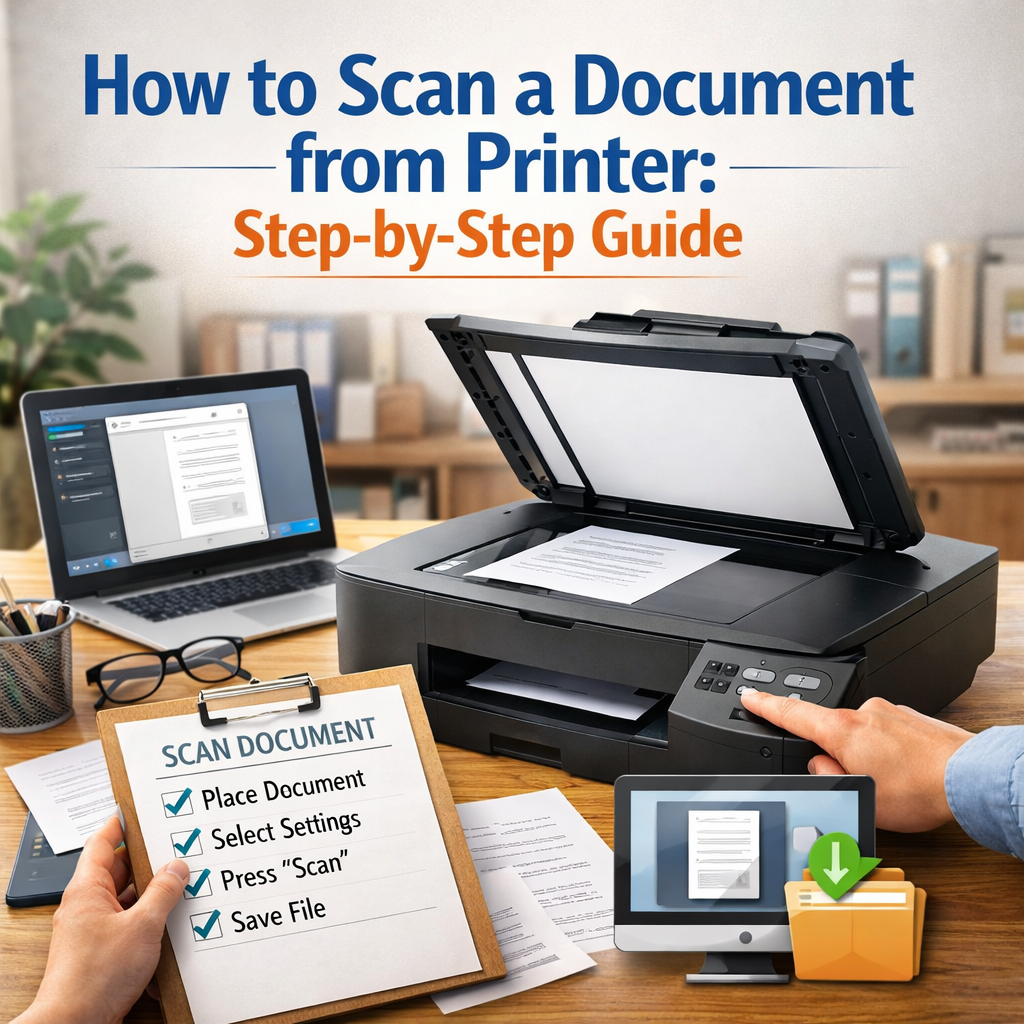
Scanning a document from a printer may sound simple, but for many people, it can feel confusing or even stressful. Maybe you need to send important papers to your boss, digitize family photos, or back up legal documents. No matter your reason, learning how to scan is a valuable skill.
In today’s digital world, quickly turning paper into a file saves time and helps you stay organized.
This guide will walk you through everything you need to know about how to scan a document from a printer. You’ll learn the basics, discover practical tips, and avoid common mistakes that can waste your time. We’ll cover different printer types, software, and even how to handle tricky situations. By the end, you’ll scan documents like a pro—even if you’re not a tech expert.
Understanding The Basics: What Does Scanning Mean?
Scanning is the process of converting a physical document—like a paper letter or photo—into a digital file. The file is usually an image (like JPG or PNG) or a PDF. Modern printers often include a built-in scanner, called an all-in-one printer. Some older models may have a separate scanning device.
Why scan documents?
- To keep digital records and reduce paper clutter
- To share documents easily via email or cloud services
- To edit printed text using Optical Character Recognition (OCR)
- To preserve important documents (like contracts or old photos)
Non-obvious insight: Scanned files are often easier to search, organize, and back up than physical documents. Plus, digital files can be secured with passwords or encryption.
Types Of Printers And Scanners
Not every printer scans in the same way. Understanding your device helps you scan more efficiently.
1. All-in-one Printers
These combine printing, scanning, and copying. Most home and office printers today are all-in-one.
2. Flatbed Scanners
A flatbed scanner has a glass surface. You place the document face down, close the lid, and scan. This is common for photos, books, and fragile papers.
3. Sheet-fed Scanners
These pull documents through automatically. Ideal for scanning multiple pages quickly, but not for thick or delicate items.
4. Mobile Scanners
Some portable devices connect via USB or Wi-Fi. Useful for scanning on the go, but usually have fewer features.
5. Standalone Scanners
Dedicated devices with advanced features are often used for high-volume scanning in offices.
Non-obvious insight: Sheet-fed scanners may jam if papers are wrinkled or stapled. Flatbed scanners are gentler but slower for many pages.
Preparing To Scan: What You Need
Before you start, gather these items:
- Printer/scanner (connected to your computer or network)
- Document to scan (clean, unwrinkled, and free of staples or paperclips)
- Computer or mobile device with scanning software
- Cables (USB or power cords, if not wireless)
- Internet connection (for cloud scanning or driver updates)
Checking Your Printer
Make sure your printer is:
- Plugged in and turned on
- Connected to your computer (USB, Wi-Fi, or Ethernet)
- Loaded with the latest drivers (from the manufacturer’s website)
- Free of errors (check for blinking lights or error messages)
Pro tip: Many scanning problems come from outdated drivers or poor connections. Update your printer software before scanning.
How To Scan A Document from a Printer: Step-by-step
Let’s break down the scanning process into clear, simple steps. These steps apply to most all-in-one printers and can be adjusted for your specific model.
Step 1: Place The Document
- Lift the scanner lid.
- Place the document face down on the glass, aligning it with the guides (usually marked in the corner).
- For sheet-fed scanners, insert the document face up or as directed.
Tip: For multiple pages, stack them neatly and avoid staples or folds.
Step 2: Open Scanning Software
You have several options:
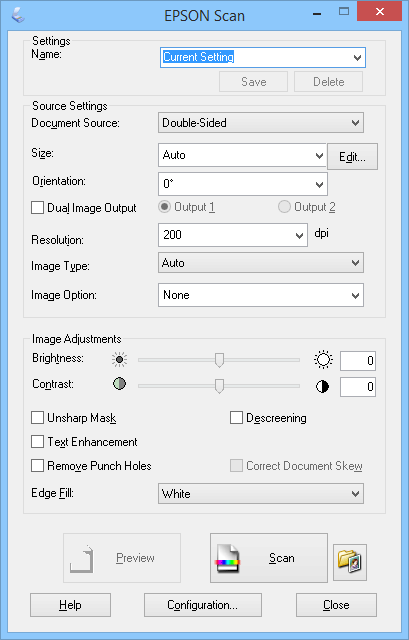
- Manufacturer software: Most printers come with their own scanning app (HP Smart, Epson Scan, Canon IJ Scan Utility, etc.)
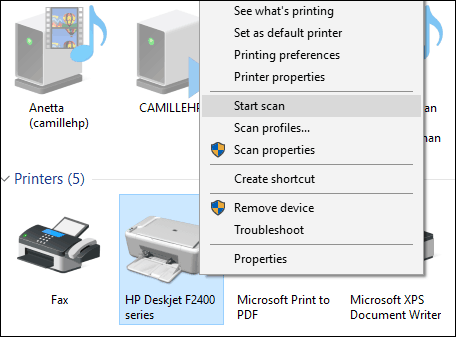
- Windows Scan: Built into Windows 10/11. Search “Windows Scan” in the Start menu.
- Mac Image Capture: Standard on macOS. Open from Applications.
- Third-party apps: Some users prefer apps like VueScan or NAPS2 for advanced features.
Non-obvious insight: Manufacturer software often gives you better image quality and more control (resolution, file type) than basic tools.
Step 3: Choose Scan Settings
Key settings to select:
- File format: PDF (good for multi-page documents), JPG/PNG (for images)
- Resolution (DPI): 150-300 DPI for text, 300-600 DPI for photos
- Color mode: Color, Grayscale, or Black & White
- Page size: Letter, A4, or custom
Pro tip: Higher DPI means better quality but larger files. For most text documents, 300 DPI is enough.
Step 4: Preview And Adjust
Most software lets you preview the scan. Use this to:
- Check alignment and clarity
- Crop unnecessary borders
- Adjust brightness or contrast if needed
Step 5: Scan And Save
- Click the Scan or Start button in your software.
- Wait for the scanner to finish.
- Save the file to your chosen folder. Name it clearly (e.g., “Invoice_March2024.pdf”).
Non-obvious insight: Always check the scanned file before closing your software. Look for missing pages or poor image quality.
Step 6: Check And Use Your Scanned File
- Open the file to verify quality.
- Rename or organize it as needed.
- Attach to emails, upload to cloud storage, or print as required.
Scanning On Different Operating Systems
Scanning can look a bit different on Windows, Mac, and mobile devices. Here’s how to handle each.
Scanning On Windows
- Use Windows Scan or the manufacturer’s software.
- Connect the printer via USB or Wi-Fi.
- Open the app and follow the on-screen instructions.
Scanning On Mac
- Open Image Capture (in Applications).
- Select your scanner from the device list.
- Set your preferences and scan.
Scanning With A Mobile Device
- Download the printer’s mobile app (e.g., HP Smart, Epson iPrint, Canon PRINT).
- Connect your phone/tablet to the same Wi-Fi as the printer.
- Follow the app’s scanning instructions.
Pro tip: Scanning apps often allow you to send files directly to cloud services (Google Drive, Dropbox) or edit them on your device.
Scanning With Advanced Features
Modern scanners offer features that make scanning faster and more powerful.
1. Automatic Document Feeder (ADF)
An ADF lets you scan a stack of pages automatically. Great for multi-page contracts or reports.
2. Duplex Scanning
Duplex means scanning both sides of a page at once. Saves time if your documents are double-sided.
3. OCR (optical Character Recognition)
OCR converts scanned images into editable text. Useful for archiving or editing printed documents.
Example: Scan a printed contract, run OCR, then edit in Word.
4. Scan To Email Or Cloud
Some printers let you scan directly to an email address or cloud service. This skips the computer entirely.
Non-obvious insight: If you need to send documents often, set up quick-access buttons in your printer’s software for one-touch scanning.
Troubleshooting Common Scanning Problems
Even with the best setup, things can go wrong. Here’s how to fix common issues.
Scanner Not Detected
- Check cables and connections.
- Restart the printer and computer.
- Reinstall printer drivers.
Poor Scan Quality
- Clean the scanner glass with a soft, lint-free cloth.
- Increase resolution (DPI) in settings.
- Adjust brightness or contrast.
Scanned File Is Too Large
- Lower the DPI.
- Scan in black and white instead of color.
- Save as PDF instead of TIFF or BMP.
Paper Jams In Sheet-fed Scanners
- Remove stuck pages carefully.
- Smooth out wrinkled papers before scanning.
- Do not overload the feeder.
Software Crashes
- Update your scanning software.
- Try a different app or restart your device.
Pro tip: If you scan often, keep your scanner drivers and software up to date. This avoids many problems.
Organizing And Managing Scanned Files
After scanning, it’s easy to lose track of your files. Good organization saves time and stress later.
File Naming
Use clear, consistent names:
- “Invoice_2024-03-15.pdf”
- “Passport_Scan_JohnDoe.jpg”
Folder Structure
Create folders by year, document type, or project:
- Documents > Receipts > 2024
- Legal > Contracts
Backup And Security
- Store important files in cloud services (Google Drive, OneDrive)
- Use external hard drives for backup
- Password-protect or encrypt sensitive files
Non-obvious insight: Regularly back up scanned files. Hard drives and computers can fail, but cloud storage keeps files safe.
Comparing Popular Scanning Software
Many options exist for scanning software. Here’s a quick comparison to help you choose:
| Software | Platform | Best For | Key Features |
|---|---|---|---|
| HP Smart | Windows, Mac, Mobile | HP printers | Scan to cloud, OCR, easy interface |
| Epson Scan | Windows, Mac | Epson printers | High-resolution, batch scan, photo editing |
| Canon IJ Scan Utility | Windows, Mac | Canon printers | One-click scan, multi-page PDF, OCR |
| Windows Scan | Windows | All compatible devices | Simple, built-in, basic features |
| Image Capture | Mac | All compatible devices | Simple, multi-page, customizable |
| VueScan | Windows, Mac, Linux | Advanced users | Supports old scanners, many formats |
Comparing File Formats For Scanned Documents
Choosing the right format affects file size, quality, and how you use your scans.
| Format | Best For | Pros | Cons |
|---|---|---|---|
| Multi-page docs, sharing | Compact, easy to share, supports OCR | Harder to edit images | |
| JPG | Photos, single pages | Small size, widely supported | Lossy compression, not for text |
| PNG | Images, graphics | High quality, lossless | Larger files are not great for multi-page |
| TIFF | Archiving, editing | Very high quality, supports layers | Very large files |
Pro tip: For most office use, PDF is the best choice. For photos, use JPG or PNG.
Real-world Example: Scanning And Sending A Contract
Imagine you need to send a signed contract to your client.
- Place the contract on the scanner.
- Use your printer’s app to scan at 300 DPI, save as PDF.
- Check the file for clarity and all pages.
- Rename the file: “Contract_ClientName_2024-03-15.pdf”.
- Attach the file to your email or upload it to your client’s portal.
This process ensures your document is clear, organized, and secure.
Security And Privacy Tips When Scanning
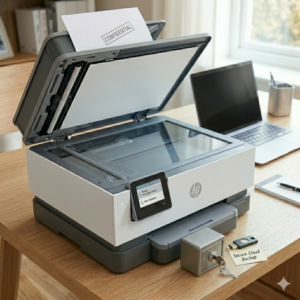
Scanning sensitive documents—like passports, tax forms, or contracts—requires extra care.
- Always scan to a secure folder.
- Use passwords for sensitive PDFs.
- Delete temporary files after emailing or uploading.
- Keep your printer’s firmware updated to patch security risks.
Non-obvious insight: Some printers have built-in memory. After scanning, clear the print queue or reset the device to prevent unauthorized access.
Environmental Impact Of Scanning
Going paperless helps the environment. By scanning and saving files digitally, you reduce paper waste and save trees. Recycle physical documents when possible, and avoid printing unless necessary.
Tip: Use double-sided scanning to further reduce paper use.
Common Mistakes Beginners Make
- Using low resolution for important documents results in blurry scans.
- Forgetting to check all pages—sometimes pages are skipped in the feeder.
- Saving files with unclear names like “scan1.pdf”, which makes finding them later hard.
- Not backing up scanned files—all work is lost if your computer crashes.
- Ignoring security for sensitive scans.
- Skipping software updates is causing compatibility problems.
- Scanning with dirty glass, which can add streaks or dust to images.
How To Scan With Popular Printer Brands
Brands may have unique software and features. Here are quick tips for the most common brands:
Hp
- Use the HP Smart app.
- Offers scan to email, cloud, and OCR.
Canon
- Use Canon IJ Scan Utility.
- Simple one-click scan and multi-page PDF.
Epson
- Use Epson Scan.
- High-quality photo scanning and batch options.
Brother
- Use Brother iPrint&Scan.
- Good for business documents and network scanning.
Each brand has its official support site with user guides and troubleshooting help. For more details, see the official HP Support page.
Accessibility: Scanning For Everyone
Many scanning tools offer accessibility features:
- Screen reader support for the visually impaired
- Large buttons in software for easier control
- Voice commands in some mobile apps
If you or someone you know has accessibility needs, check your printer’s manual for special features.
When To Use Professional Scanning Services
Sometimes, home scanning isn’t enough—like for large blueprints, legal evidence, or fragile historical documents.
Professional services offer:
- High-resolution, large-format scanning
- Document restoration and OCR
- Secure handling of sensitive or rare materials
Tip: For most home and office use, your all-in-one printer is enough. Use professionals only for special needs.
Frequently Asked Questions
How Do I Scan Multiple Pages Into A Single PDF?
Most scanning software (like HP Smart or Canon IJ Scan Utility) lets you add more pages before saving. Use the “Add Page” or “Continue Scanning” option, then save all pages together as one PDF.
Why Does My Scanner Say “Not Connected”?
Check that your printer is powered on and connected to your computer (via USB or Wi-Fi). Try restarting both devices. If the problem continues, reinstall the printer drivers from the manufacturer’s website.

What Is The Best Resolution (dpi) For Scanning Documents?
For text documents, 300 DPI is usually perfect. For photos or images you want to enlarge, use 600 DPI. Higher DPI increases quality but also file size.
Can I Scan Directly To My Email Or Cloud?
Yes, many printers have this feature. Check your scanning software or printer control panel for options like “Scan to Email” or “Scan to Cloud”. You may need to set up your email or cloud account in the printer’s settings first.
Is It Safe To Scan Confidential Documents?
Scanning is safe if you store files in secure, password-protected folders and delete temporary files after use. For extra safety, use encrypted cloud storage or encrypted PDF files.
Scanning documents from a printer is a skill that pays off in saved time, less paper clutter, and better organization. By following these steps, keeping your software updated, and using good security habits, you can scan quickly and confidently—whether for work, school, or personal projects.
With practice, scanning becomes a simple part of your digital life.