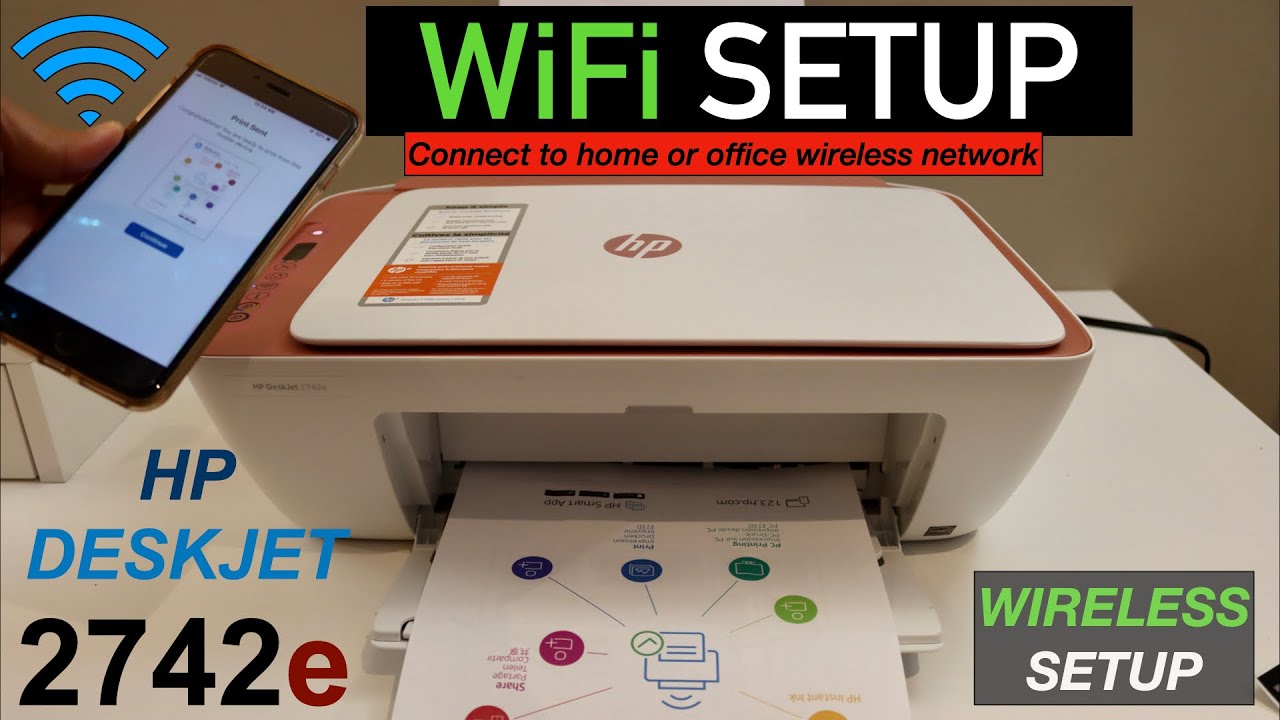
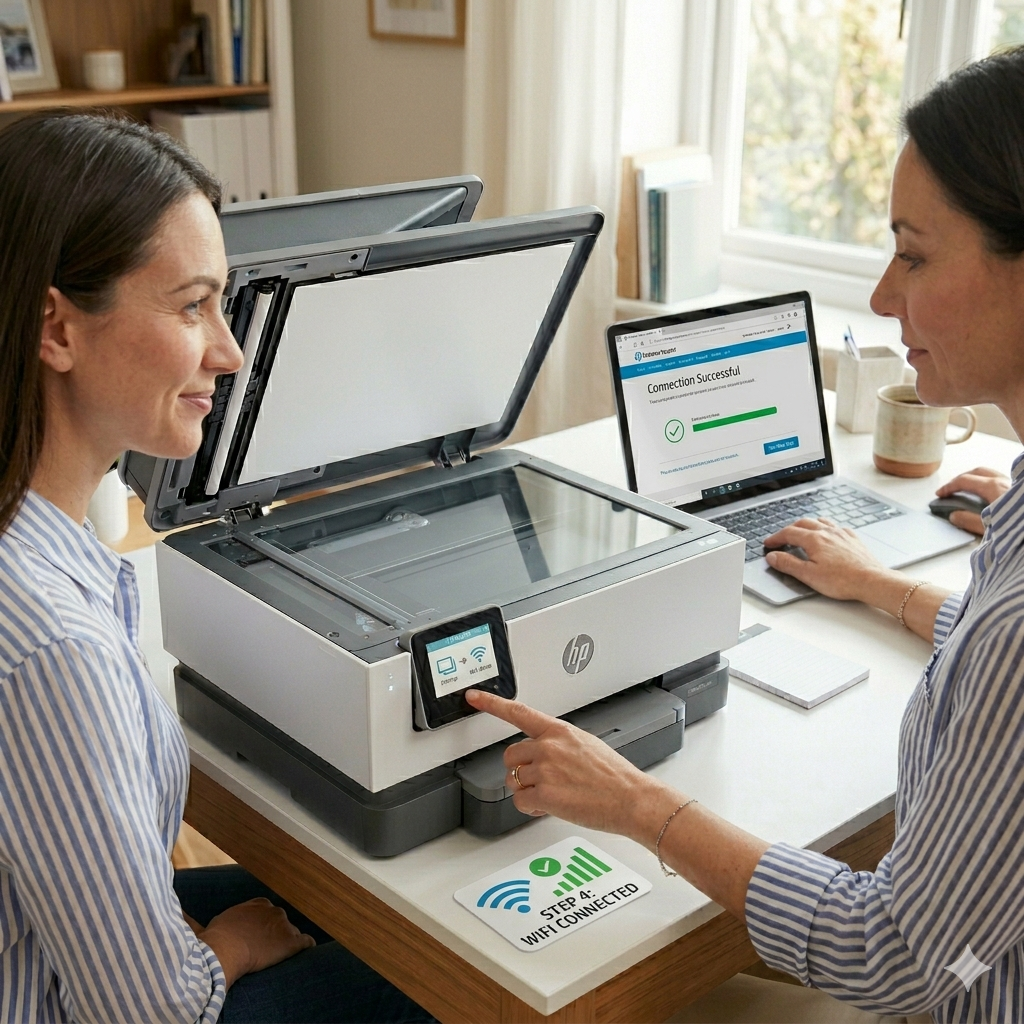
Connecting your HP printer to Wi-Fi may seem challenging, especially if you are not confident with computers or technology. But once you understand the steps, the process becomes much easier, even for beginners. A wireless connection allows you to print from anywhere in your home or office, using your laptop, phone, or tablet. It saves you time, reduces cable clutter, and makes your work more flexible. HP has designed its printers to be user-friendly, but the instructions can sometimes feel confusing, especially if you are new to Wi-Fi printers.
This article will guide you step by step through connecting your HP printer to Wi-Fi. You will learn about different connection methods, how to prepare your network, and how to troubleshoot common problems. We will also compare the main wireless connection options, explain why Wi-Fi printing is useful, and answer the most common questions.
Whether you have a brand-new HP printer or are reconnecting an older model, you will find detailed, practical guidance here.
Understanding Wireless Printing
Wireless printing means sending print jobs from your device to the printer without using a physical cable. Instead, the data travels over your Wi-Fi network. This makes printing faster and easier, and allows many devices to share the same printer.
Why Choose Wi-fi Over Usb?
- Flexibility: Print from anywhere in your Wi-Fi zone.
- Multiple Devices: Connect multiple laptops, phones, or tablets to a single printer.
- Less Clutter: Fewer cables on your desk or floor.
- Mobile Printing: Send print jobs from your smartphone, even from another room.
Common Terms You Should Know
- SSID: The name of your Wi-Fi network.
- Password/Network Key: The code to join your Wi-Fi.
- WPS (Wi-Fi Protected Setup): A simple way to connect devices to Wi-Fi without entering a password.
- HP Smart App: An app from HP for setting up and managing your printer.
Knowing these terms helps you understand the setup process and avoid confusion.
Preparing for HP Printer Wi-fi Setup
Before you start, it’s important to prepare both your printer and your Wi-Fi network. Skipping this can lead to connection errors or wasted time.
What You Need
- HP Printer (with wireless capability)
- Wi-Fi Network (2.4GHz is preferred for most printers)
- Wi-Fi Password
- Smartphone, tablet, or computer
- HP Smart App (recommended for easy setup)
Check Your Wi-fi Signal
A weak Wi-Fi signal causes most connection problems. Place your printer within 3-5 meters (10-16 feet) from your router for the best results. Avoid thick walls or metal objects between the printer and the router.
Update Printer Firmware
Many HP printers need the latest firmware to work well with Wi-Fi. Go to the HP website, enter your printer model, and download updates if available. This step can fix bugs and improve wireless performance.
Reset Printer Settings (if Reconnecting)
If you are reconnecting or switching networks, reset the printer’s wireless settings:
- Turn on your printer.
- On the printer’s control panel, go to Settings or Network.
- Find Restore Network Settings or Restore Wi-Fi Setup.
- Confirm the reset.
This clears old Wi-Fi data and prevents setup errors.
Main Methods To Connect an HP Printer To Wi-fi
There are several ways to connect your HP printer to a Wi-Fi network. The best method depends on your printer model and the devices you use. Below, you’ll find detailed instructions for each approach.
1. Using the HP Smart App
The HP Smart App is the easiest way for most users. It works with Windows, Mac, iOS, and Android devices.
Steps:
- Download and install the HP Smart App:
- Go to the official HP website or your device’s app store.
- Install the app on your phone, tablet, or computer.
- Turn on Your Printer:
- Make sure it is plugged in and has paper loaded.
- Open the HP Smart App:
- Click Set Up a New Printer.
- The app will search for nearby HP printers.
- Connect to Wi-Fi:
- When your printer appears, select it.
- Enter your Wi-Fi network name (SSID) and password if asked.
- The app will send the Wi-Fi credentials to your printer.
- Finish Setup:
- Follow any extra instructions (like installing drivers).
- Print a test page to confirm the connection.
Tip: If your printer is not found, reset its network settings and try again.
2. Using The Printer Control Panel (for Models With a Display Screen)
Some HP printers have a touch screen or buttons that let you enter Wi-Fi details directly.
Steps:
- Access Wireless Setup:
- On the control panel, tap Wireless or Network.
- Choose Wireless Setup Wizard.
- Select Your Wi-Fi Network:
- The printer will scan for networks.
- Select your SSID from the list.
- Enter Password:
- Use the screen or keypad to type your Wi-Fi password.
- Confirm the information.
- Connect:
- The printer will connect to Wi-Fi.
- A solid blue wireless light usually means success.
Tip: If your network does not appear, move the printer closer to the router or check for interference.
3. Using Wps (wi-fi Protected Setup)
WPS is a quick connection method, but your router and printer must both support it. No password is needed.
Steps:
- Press the WPS Button on Your Router:
- It is usually labeled WPS or has a special symbol.
- Hold for 3-5 seconds.
- Activate WPS on Your Printer:
- Within 2 minutes, press the Wireless button on your printer, or go to the WPS menu via the display.
- Select WPS Push Button.
- Automatic Connection:
- The printer and router will communicate.
- A blue light on the printer will stop blinking when connected.
Warning: WPS is not available on all routers and printers. It may also be less secure than other methods.
4. Using HP Auto Wireless Connect
Some HP printers offer Auto Wireless Connect during the setup process.
Steps:
- Start Printer Setup:
- Unbox and turn on your printer.
- Begin the setup process using the software on your computer.
- Choose Wireless Setup:
- The installer will offer Auto Wireless Connect.
- Confirm, and the software will handle the connection.
- Complete Setup:
- Follow the on-screen steps.
- Print a test page to check.
Note: This method works best if your computer is already connected to the desired Wi-Fi network.
5. Using a USB Cable For Initial Setup
If wireless methods fail, you can connect the printer to your computer with a USB cable for setup, then switch to Wi-Fi.
Steps:
- Connect USB Cable:
- Plug the printer into your computer.
- Run HP Setup Software:
- Download from the HP website if needed.
- Start the installation and choose Wireless as your preferred connection.
- Enter Wi-Fi Details:
- The software will ask for your SSID and password.
- These details are sent to the printer via USB.
- Disconnect USB Cable:
- After setup, unplug the cable.
- The printer should now be on your Wi-Fi.
This method is especially useful for older printers with no screen.
Comparing Wi-fi Setup Methods
The best connection method depends on your printer model, your comfort with technology, and your home network. Here’s a comparison to help you decide:
| Method | Best For | Pros | Cons |
|---|---|---|---|
| HP Smart App | Most users | Easy, works with phones and computers | Needs app installation |
| Control Panel | Printers with a display | No extra software needed | Not available on basic models |
| WPS | Quick connection | No password needed | Not on all routers/printers, less secure |
| Auto Wireless Connect | Newer HP models | Very simple process | Requires a compatible computer |
| USB Setup | Older printers | Works even with no Wi-Fi screen | Needs cable and software |
Printing From Different Devices
Once your HP printer is on Wi-Fi, you can print from many types of devices. Each device may need a different setup.
Printing From Windows Pc
- Open the Control Panel and go to Devices and Printers.
- Click Add a printer.
- Your HP printer should appear. Select it and finish the setup.
- Print a test page.
Printing From Mac
- Open System Preferences and choose Printers & Scanners.
- Click the + symbol to add a new printer.
- Select your HP printer from the list.
- Install drivers if required.
Printing From iPhone or iPad
- Make sure your device is on the same Wi-Fi network.
- Open the file or photo you want to print.
- Tap the Share icon, then Print.
- Select your HP printer (look for the AirPrint symbol).
Printing From Android Devices
- Download the HP Print Service Plugin from Google Play if not already installed.
- Open the item to print, tap Menu, then Print.
- Choose your HP printer.
Non-obvious insight: After connecting your printer, you may need to restart your device for the new printer to appear in the list.
Solving Common Wi-fi Connection Issues
Even with the right steps, sometimes things go wrong. Here’s how to fix the most frequent problems:
Printer Not Found During Setup
- Check Power: Make sure the printer is turned on and not in sleep mode.
- Reset Wi-Fi: Use the printer’s menu to reset the wireless settings, then try again.
- Move Closer: Place the printer near the router during setup.
Printer Connects, But Does Not Print
- Restart Devices: Turn off the printer and your computer/phone, then turn them back on.
- Check Drivers: Make sure you installed the latest drivers from HP.
- Correct Printer Selected: On your device, double-check you are sending jobs to the correct printer.
Printer Keeps Disconnecting
- Signal Strength: Ensure the printer is within the Wi-Fi range.
- Router Settings: Some routers have settings that disconnect idle devices. Adjust these in your router’s admin page.
- Firmware Update: Update the printer’s firmware from the HP support site.
Wi-fi Network Not Detected
- Network Band: Many HP printers only support 2.4GHz Wi-Fi, not 5GHz.
- SSID Hidden: If your Wi-Fi is not broadcasting its name, enter the SSID manually on the printer.
Error Messages
- Note the exact error code and search HP’s support site for that code.
- For errors like “Printer Offline”, try restarting the printer and your router.
Non-obvious insight: Some HP printers work better if you assign them a fixed IP address in your router’s settings. This prevents connection drops when your network restarts.
Advanced Tips For Reliable Wireless Printing
Connecting your HP printer is only the first step. For the best performance and fewer problems, consider these advanced tips.
1. Use a static IP address
Assigning your printer a static IP address can stop random disconnections. You can do this via your router’s admin page. Look for the printer’s MAC address and set a reserved IP.
2. Enable 2.4ghz Wi-fi
Most HP printers do not support 5GHz networks. Make sure your router broadcasts both 2. 4GHz and 5GHz, or at least 2. 4GHz.
3. Reduce Interference
Microwaves, cordless phones, and thick walls can block Wi-Fi signals. Place your router and printer away from these.
4. Update Router Firmware
Outdated routers can cause printer connection problems. Log in to your router’s admin page and check for updates.
5. Keep Printer Firmware Updated
HP often releases updates that fix bugs and improve Wi-Fi reliability. Check the HP website every few months.
Security Concerns With Wireless Printing
Wi-Fi printing is convenient, but it brings new security risks if not managed well.
- Change the Default Password: Never leave your printer on the default admin password.
- Update Regularly: Apply all firmware updates to patch security holes.
- Turn Off Wi-Fi Direct If Unused: Wi-Fi Direct lets devices connect directly without a router. Turn it off if you do not use it.
- Network Isolation: If possible, keep your printer on a guest network.
For more on network security, check the advice from CISA.
When To Contact HP Support
If you have tried all the above and your printer still will not connect, it may be time to contact HP support. Be ready to provide:
- Your printer model
- Your Wi-Fi router model
- Details about your computer/phone
- What steps have you already tried
- Any error codes
HP support can be reached via their official website or by phone. They can help with advanced troubleshooting or arrange repairs if needed.
Real-world Example: Connecting an HP Deskjet 2700 Series To Wi-fi
Let’s walk through a practical example. Suppose you have an HP DeskJet 2700 series printer and want to connect it using the HP Smart App.
- Download the HP Smart App to your phone.
- Turn on the printer and make sure it is in Wi-Fi setup mode (the wireless light should blink).
- Open the HP Smart App and choose Set Up a New Printer.
- The app finds your printer. Tap it and enter your Wi-Fi password.
- Wait while the app sends information to the printer.
- When the wireless light becomes solid, your printer is connected.
- Print a test page to confirm.
If the printer was not in setup mode, you would reset the Wi-Fi settings first (hold the Wireless and Cancel buttons together for 5 seconds).

Troubleshooting Table: Common Hp Printer Wi-fi Issues
Below is a quick reference for solving typical Wi-Fi problems with HP printers.
| Problem | Possible Cause | Solution |
|---|---|---|
| Printer not found during setup | Printer not in setup mode or too far from the router | Reset Wi-Fi settings, move the printer closer |
| Cannot print after connecting | Wrong printer selected or driver issue | Reinstall drivers, select the correct printer |
| Frequent disconnections | Weak signal or dynamic IP address | Assign a static IP, move the printer closer |
| Wi-Fi network not found | SSID hidden or unsupported Wi-Fi band | Manually enter the SSID, use the 2.4GHz network |
| WPS not working | The router or printer does not support WPS | Use the HP Smart App or the USB setup instead |
Cost And Time: What To Expect
Time Required
- HP Smart App method: 10-15 minutes
- Control Panel method: 10 minutes
- WPS method: 5 minutes
- USB setup: 15-20 minutes
Costs
- No extra cost for most users. The HP Smart App and drivers are free.
- If you have an older printer, you may need to buy a USB cable (about $5-10 USD).
- Upgrading your router for better Wi-Fi can cost $50-150 USD.
Insider tip: Investing in a strong Wi-Fi router improves not only printing but also all your wireless devices.

Hp Printer Models: Wi-fi Capability Comparison
Some HP models have more advanced Wi-Fi features than others. Here’s a quick comparison of common series:
| Model Series | Wi-Fi Feature | Setup Method | Mobile Printing |
|---|---|---|---|
| HP DeskJet | Yes (most models) | HP Smart App, Control Panel | Yes |
| HP Envy | Yes (all models) | HP Smart App, Control Panel, WPS | Yes |
| HP LaserJet | Yes (newer models) | HP Smart App, USB Setup | Yes |
| HP OfficeJet | Yes (all models) | HP Smart App, Control Panel, WPS | Yes |
| HP Tango | Wi-Fi only | HP Smart App | Yes |
Frequently Asked Questions
How Do I Find My Wi-fi Network Name (ssid) and Password?
Your SSID and password are usually printed on a label on your Wi-Fi router. You can also check your network settings on a connected computer or phone. If you changed your Wi-Fi details, use your custom name and password.
What Should I Do If My Printer Does Not Support 5 GHz Wi-Fi?
Most HP printers only work with 2.4GHz Wi-Fi. Make sure your router broadcasts a 2.4GHz signal. You can enable both 2.4GHz and 5GHz in your router settings, or connect to the correct one during setup.
Is It Safe To Connect My Printer To Wi-fi?
Yes, if you take basic security steps. Change the default admin password, keep your firmware updated, and turn off unused features like Wi-Fi Direct. For more on network security, see advice from CISA.
Can I Print From My Phone After Connecting My Hp Printer To Wi-fi?
Yes. Use the HP Smart App on your phone, or use AirPrint (iOS) or the HP Print Service Plugin (Android) to print directly to your Wi-Fi printer.
Why Does My Hp Printer Keep Disconnecting From Wi-fi?
The most common reasons are weak signal, router settings, or dynamic IP addresses. Place your printer closer to the router, assign a static IP, and update your printer’s firmware for better stability.
Connecting your HP printer to Wi-Fi unlocks a world of convenience and flexibility. Follow the steps above, choose the method that fits your device, and enjoy wireless printing with fewer headaches. If you run into problems, remember: patience, careful troubleshooting, and regular updates are your best tools. With practice, setting up and using a wireless HP printer will become a simple part of your daily routine.