
 Connecting a printer to a computer is easier than most people think. Whether you want to connect a printer to a computer using USB, Wi-Fi, or Bluetooth, this guide will walk you through every step clearly. By the end, you’ll know exactly how to connect your printer and start printing without issues.
Many people struggle with this process, especially if they are not familiar with technical steps or the variety of connection methods available. But the good news is, connecting a printer is easier than ever—if you know the right steps.
In this guide, you will discover clear, step-by-step instructions for connecting your printer, no matter if it uses a USB cable, Wi-Fi, or Bluetooth. You will also learn how to troubleshoot problems, choose the best connection type for your needs, and avoid common mistakes.
With expert tips and practical examples, even beginners can set up their printer with confidence.
Understanding Printer Connection Types
Before you start, it is important to know the main ways you can connect your printer to your computer. Each method has its own setup process, benefits, and potential challenges.
Usb Connection
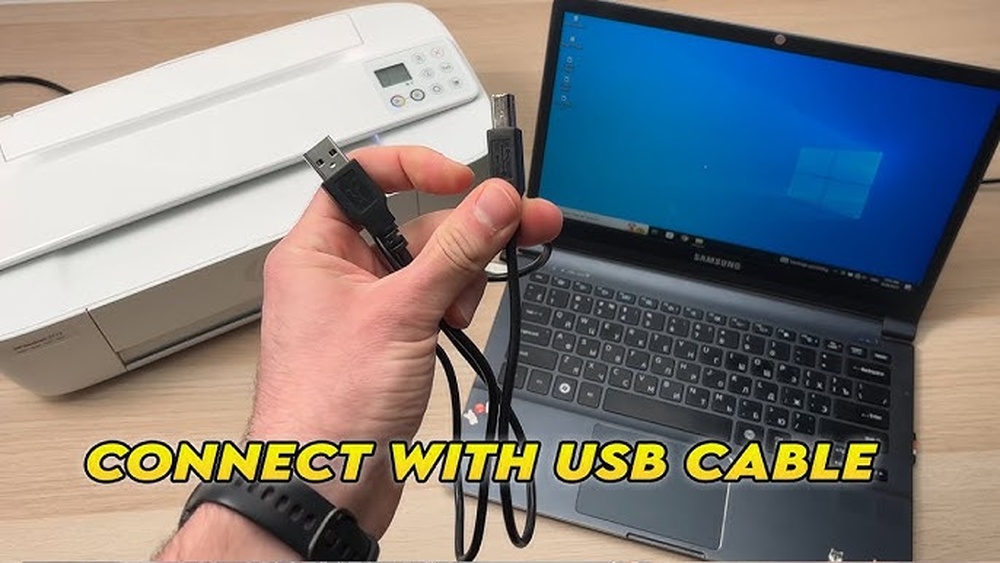
A USB connection is one of the most common and reliable ways to connect a printer. You use a USB cable to link the printer directly to your computer. This method is fast, secure, and usually very easy to set up. However, you can only print from the connected computer unless you set up sharing.
Wireless Connection (wi-fi)
Many modern printers support Wi-Fi connections. This allows you to print from any device on your network—laptops, phones, even tablets. Wireless printing is convenient for homes and offices with multiple users. However, it does require a bit more setup and sometimes troubleshooting.
Bluetooth Connection
Some printers offer Bluetooth connectivity. This is ideal for short-range printing from laptops, tablets, or smartphones. Bluetooth is simple, but not all printers or computers support it, and the range is limited.
Wired Network (Ethernet)
Printers with Ethernet ports connect to your router or network switch. This gives stable and fast connections, especially in offices. It allows multiple computers to access the printer, but you need to run a cable from the printer to your network equipment.
Cloud Printing
Cloud printing lets you send print jobs over the Internet, sometimes even when you are away from home or the office. Many brands now support Google Cloud Print alternatives or their own cloud services. This method is perfect for remote teams but requires Internet setup and compatible devices.
Preparing For Printer Setup
Connecting your printer will go more smoothly if you prepare ahead. Here is what you should do before you start:
-
- Check Compatibility: Make sure your printer works with your computer’s operating system (Windows, macOS, Linux).
-
- Unbox and Place Printer: Remove all packaging, plug in the power, and set up the printer in a spot with good airflow and easy access.
-
- Install Ink/Toner and Paper: Follow the printer’s manual to insert ink or toner and load paper.
-
- Find Cables or Network Details: If you use USB or Ethernet, locate the right cable. For wireless setup, find your Wi-Fi network name and password.
-
- Download Latest Drivers: Visit the printer manufacturer’s website to get the latest software. Outdated drivers are a common cause of printer problems.
Non-obvious insight: Skipping the driver download step is a frequent mistake. Even if your computer detects the printer, using the latest drivers often unlocks extra features like scanning, double-sided printing, and print quality settings.
Step-by-step: Connecting via USB
For many users, a USB connection is the fastest way to get started. Here’s how to do it:
-
- Turn On the Printer: Make sure the printer is plugged in and powered on.
-
- Connect the USB Cable: Plug one end into the printer, the other into your computer’s USB port.
-
- Wait for Detection: Windows and macOS often detect printers automatically. You may see a notification that a new device is found.
-
- Install Drivers: If prompted, install the drivers from the manufacturer’s website or use the CD that came with the printer.
-
- Print a Test Page: Open a document and try printing. If it works, setup is complete.
If your computer does not recognize the printer, check if the USB cable is secure, try a different USB port, or restart your devices. On some older printers, you may need to add the printer manually from your computer’s settings.
Practical tip: Avoid using USB hubs for printer connections. Plug the printer directly into your computer for the most reliable connection.
Step-by-step: Connecting To Wi-fi
Wireless printing gives you the freedom to print from any device on your network. Setup can be a bit more complex, but it is worth the effort.
Connect Printer to Computer via Control Panel (WiFi Setup)
Most modern printers have a screen and buttons for setup:
-
- Power On the Printer.
-
- Navigate to Network Settings: Use the arrow keys to find “Wi-Fi Setup” or “Wireless LAN Setup”.
-
- Select Your Network: Choose your Wi-Fi network from the list.
-
- Enter Password: Use the keypad to type your Wi-Fi password.
-
- Confirm and Connect: The printer should display a message when connected.
Using Wps (wi-fi Protected Setup)
If your router and printer both support WPS, setup is even easier:
-
- Press the WPS Button on Your Router (usually for 2–3 seconds).
-
- Start WPS on the Printer: Find the WPS option in the network settings and select it.
-
- Wait for Connection: The devices will pair automatically.
Adding The Printer To Your Computer
Once the printer is on your Wi-Fi network:
-
- Windows: Go to “Settings” > “Devices” > “Printers & scanners” > “Add a printer or scanner”.
-
- MacOS: Open “System Preferences” > “Printers & Scanners” > “+” button.
Choose your printer from the list. Install drivers if prompted.
Troubleshooting Tips
-
- If your printer does not show up, make sure it is on the same network as your computer.
-
- Restart your router and printer if needed.
-
- Update your printer’s firmware for better compatibility.
Non-obvious insight: Many Wi-Fi printers lose connection if you change your network password or router. If this happens, repeat the Wi-Fi setup steps.
Step-by-step: Connecting Via Bluetooth
Bluetooth is less common but can be very useful for mobile devices or laptops.
-
- Enable Bluetooth on Your Computer: Check in your settings that Bluetooth is turned on.
-
- Put Printer in Pairing Mode: Check the manual for your model—usually, there’s a “Bluetooth” or “Pairing” button.
-
- Find the Printer: On your computer, search for Bluetooth devices.
-
- Pair and Connect: Select your printer and follow prompts to pair.
-
- Install Drivers: You may need to install or update drivers after pairing.
Bluetooth printing may be slower and is not ideal for large print jobs, but it is handy for quick tasks.
Step-by-step: Connecting Via Ethernet
Wired network connections are common in offices and for shared printers.
-
- Plug in the Ethernet Cable: Connect the printer to your router or switch.
-
- Turn On the Printer: Wait for it to join the network—many printers display their IP address on the screen.
-
- Add the Printer to Your Computer:
-
- Windows: Go to “Printers & scanners” and add by network.
-
- MacOS: Use “Add Printer” and choose “IP” to enter the printer’s address if needed.
-
- Install Drivers as prompted.
Ethernet gives fast and stable connections, but you may need to check network security settings if sharing in a large office.
Step-by-step: Cloud Printing
Cloud printing is perfect for remote work or printing while away from home.
-
- Register the Printer with a Cloud Service: Follow the printer’s instructions—often, you log in to your manufacturer’s website.
-
- Install Cloud Printing App: On your computer or device, download the app that matches your printer’s cloud service.
-
- Send Documents to Print: Use the app or email to send files to your printer’s unique address.
Cloud printing can be less secure than local printing. Always use strong passwords and trusted services.
Comparison Of Connection Methods
Choosing the right connection type depends on your needs. Here’s a quick comparison:
| Connection Type | Speed | Ease of Setup | Best For | Drawbacks |
|---|---|---|---|---|
| USB | High | Very Easy | Single user, Home | Not for sharing |
| Wi-Fi | Medium | Moderate | Multiple devices | Needs stable network |
| Bluetooth | Low | Easy | Mobile, Short range | Limited range, Slower |
| Ethernet | High | Moderate | Offices, Shared printers | Needs cabling |
| Cloud | Variable | Advanced | Remote printing | Depends on Internet |

Installing Printer Drivers And Software
Drivers are special programs that help your computer talk to your printer. Without the right drivers, you may not be able to print, scan, or use advanced features.
How To Install Drivers
-
- From the Manufacturer Website: Go to the support section of brands like HP, Canon, Epson, or Brother. Download the latest driver for your printer model and operating system.
-
- Using the included CD/DVD: Many printers come with a setup disc. This is useful if you do not have Internet, but the included drivers may be outdated.
-
- Automatic Installation: Modern computers often download drivers automatically. Still, checking for updates is a good idea.
Why Up-to-date Drivers Matter
Updated drivers fix bugs, add features, and improve security. For example, a new driver may let you print double-sided or use “quiet mode. ” Outdated drivers can cause crashes or printing errors.
Common Driver Installation Issues
-
- Wrong Driver Version: Make sure you select the exact model number and operating system.
-
- Corrupt Download: If setup fails, delete the file and download again.
-
- Conflicting Drivers: If you had a previous printer, uninstall its drivers first.
Setting A Default Printer
If you have more than one printer installed, you should set your main printer as the default. This saves time and avoids mistakes.
-
- Windows: Go to “Settings” > “Devices” > “Printers & scanners”. Click your main printer and select “Set as default”.
-
- MacOS: Open “Printers & Scanners”, select your main printer, and set it as the default.
Sharing Your Printer With Other Devices
You may want to share your printer across a home or office network. Here’s how:
Printer Sharing On Windows
-
- Open “Control Panel” > “Devices and Printers”.
-
- Right-click your printer > “Printer properties”.
-
- Go to the “Sharing” tab, and check “Share this printer”.
Printer Sharing on macOS
-
- Go to “System Preferences” > “Printers & Scanners”.
-
- Select your printer and check “Share this printer on the network”.
Other computers on your network can now add the printer as a network device.
Mobile Printing: Printing From Phones And Tablets
Printing from a phone or tablet is very popular. Here are the main ways:
Apple Airprint
-
- Works with most new printers.
-
- On your iPhone or iPad, tap the share icon in any app, then select “Print”.
-
- Choose your AirPrint-enabled printer.
Google Cloud Print (or Manufacturer Apps)
-
- Google Cloud Print is discontinued, but many printers have their own apps (HP Smart, Epson iPrint, etc. ).
-
- Download the app, connect to your Wi-Fi printer, and print from your phone.
Bluetooth Printing
-
- Pair your phone with the printer over Bluetooth.
-
- Use the manufacturer’s app or built-in printing features.
Non-obvious insight: Sometimes, phones and printers must be on the same Wi-Fi band (2.4 GHz or 5 GHz) to see each other. Check your router settings if your phone cannot find the printer.
How Do I Connect My Printer to My Computer If It’s Not Working (Fixes)
Even with the right setup, issues can occur. Here are common problems and how to fix them:
-
- Printer Not Found: Check cables, power, and Wi-Fi. Restart both the printer and the computer.
-
- Driver Errors: Uninstall and reinstall the drivers. Download the latest version.
-
- Cannot Print from Mobile: Make sure your printer supports mobile printing and that both devices are on the same network.
-
- Poor Print Quality: Run a cleaning cycle from the printer’s menu. Make sure you use the correct paper and ink.
-
- Stuck Print Jobs: Cancel all jobs from your computer’s print queue and restart the printer.
When To Seek Help
If you have tried all the above and your printer still does not work, contact the manufacturer’s support or visit their official help page. In some cases, hardware issues or faulty cables may require professional repair.
Advanced Setup: Printing On A Home Or Office Network
For offices or homes with many users, network printing saves time and money. Here are some advanced tips:
-
- Assign a Static IP Address: This keeps your printer’s network address from changing, which helps avoid connection issues.
-
- Use Print Management Software: In offices, tools like PaperCut or Print Manager Plus let you control who can print and monitor usage.
-
- Secure Your Printer: Change default passwords, keep firmware updated, and limit who can access the printer.

Credit: www.hp.com
Security Tips For Printer Connections
Printers are often overlooked in security planning, but they can be a target for hackers.
-
- Change Default Passwords on the printer’s web interface.
-
- Keep Firmware Updated by checking the manufacturer’s website.
-
- Turn Off Sharing when you do not need it, especially on public networks.
-
- Limit Access to trusted users only.
For more security advice, see the guidance from the Cybersecurity and Infrastructure Security Agency (CISA).
Real-world Example: Connecting A Printer In A Shared Apartment
Let’s look at a practical scenario. Sarah and her roommates need to share a printer in their apartment. Sarah connects the printer to the Wi-Fi network using the printer’s control panel. She sets up the printer on her laptop, then enables printer sharing.
Her roommates add the shared printer from their laptops by selecting it from the list of network devices. Now, everyone can print wirelessly, and if there is a problem, they know to check the Wi-Fi and restart the printer.
Non-obvious insight: In shared environments, it’s smart to place the printer near the router for the best wireless signal and to label the printer with its network name to avoid confusion.
Cost And Efficiency: Wired Vs. Wireless Printing
Efficiency matters, especially if you print a lot. Here’s how wired and wireless printing compare for cost, speed, and convenience.
| Aspect | Wired (USB/Ethernet) | Wireless (Wi-Fi/Bluetooth) |
|---|---|---|
| Hardware Cost | Usually lower | Printers may cost more |
| Print Speed | Faster, more consistent | Can be slower if the network is busy |
| Setup Time | Quick (plug and play) | May need more steps |
| Best Use | Home, single user, office | Shared, mobile, flexible |
Tips For A Smooth Printing Experience
-
- Keep Your Printer Firmware Updated: Manufacturers often release updates to fix bugs and improve performance.
-
- Use Genuine Ink and Paper: This reduces the chance of jams or poor-quality prints.
-
- Regular Maintenance: Clean the printer heads and rollers as described in the manual.
-
- Back Up Printer Settings: Some printers let you save settings to a file. This is handy if you need to reset the device.
Non-obvious insight: Power surges can damage printers. Use a surge protector to protect your device, especially in areas with unstable power.

Frequently Asked Questions
How Do I Know Which Connection Type My Printer Supports?
Check the printer’s manual or look at the ports and buttons. Most modern printers support at least USB and Wi-Fi. Some also have Bluetooth or Ethernet. The manufacturer’s website also lists supported features for each model.
Why Is My Printer Not Showing Up On My Computer?
This can happen if the printer is not turned on, not connected to the network, or if the drivers are missing. Restart your devices, check all cables or network settings, and reinstall drivers if needed.
Can I Connect One Printer To Multiple Computers?
Yes, if the printer is on a network (Wi-Fi or Ethernet), any computer on that network can add it. For USB printers, you can share the printer using your operating system’s sharing features, but only when the main computer is on.
Is Wireless Printing Safe?
Wireless printing is safe if you use a secure Wi-Fi network and update your printer’s firmware. Avoid using open or public Wi-Fi for printing, and always change default passwords on your printer’s web interface.
What Should I Do If My Printer Keeps Disconnecting From Wi-fi?
Move the printer closer to your router, avoid network congestion, update the printer’s firmware, and check if your router’s settings block devices. Some printers have better Wi-Fi antennas than others, so placement matters.
Connecting your printer to your computer is more than just plugging in a cable—it’s about making your work and life smoother. With the right setup, you can print from anywhere, share your device with family or coworkers, and avoid headaches.
Remember, the key is to match the connection method with your needs, keep your drivers and firmware updated, and follow basic security practices. With these steps, printing becomes easy, reliable, and stress-free.