
When Apple introduced the Apple Watch in 2015, many people thought of it as a glorified fitness tracker or a secondary iPhone screen strapped to the wrist. Fast forward to today, and the Apple Watch has evolved into one of the most capable communication devices ever made, small enough to wear, powerful enough to keep you fully connected without ever reaching for your phone.
Whether you want to send a quick message, make a phone call, share your location with a loved one, or alert emergency services in a crisis, the Apple Watch has a feature for it. In this article, we’ll walk through every major communication and service feature the Apple Watch offers, written in plain English, so you don’t need to be a tech expert to follow along.
1. Phone Calls: Yes, Right from Your Wrist of Apple Watch
One of the most impressive features of the Apple Watch is its ability to make and receive phone calls. You don’t need your iPhone nearby to do this, at least not in all situations.
Calls via Bluetooth (with iPhone nearby) with the Apple Watch
When your iPhone is within Bluetooth range (roughly 30 feet), your Apple Watch can act as a speakerphone. You hear the caller through the watch’s built-in speaker, and your voice is picked up by the microphone. It works seamlessly, just raise your wrist and say “Hey Siri, call Mom” or tap the Phone app.
Independent Calls with the Cellular Apple Watch
Apple Watch models with cellular connectivity (designated by a red circle on the Digital Crown) contain a built-in eSIM. This means your watch can connect to a mobile network independently, no iPhone required. You can leave your phone at home and still take calls while out for a run, at the gym, or on the go.
Your Apple Watch shares your iPhone’s phone number through a feature called “paired number sharing,” so callers don’t even know you’re answering from a watch. Most major carriers support this, though a small monthly fee is typically required for the cellular plan add-on.
Incoming calls appear on the watch face with the caller’s name and photo. You can answer, decline, or send a quick message reply all with a tap or two.
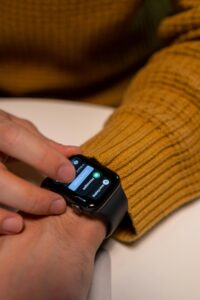
2. Messaging: Fast, Smart, and Hands-Free on Apple Watch
Typing a full message on a tiny watch screen might sound frustrating, but Apple has been clever about solving this. Apple Watch gives you multiple ways to reply to messages quickly and naturally.
iMessage and SMS
The Messages app on Apple Watch supports both iMessage (blue bubble messages between Apple devices) and regular SMS/MMS texts. You can read conversations, reply, and start new messages all from the watch.
Ways to Reply Without Typing on Apple Watch
- Smart Replies: Apple Watch suggests context-aware responses like “On my way!”, “Sounds good”, or “Can’t talk right now,” just tap to send.
- Dictation: Raise your wrist, tap the microphone, and speak your message. Apple’s voice recognition converts it to text remarkably well, even in noisy environments.
- Scribble: Draw letters one by one on the watch screen, and it converts them to text. It’s surprisingly fast once you get used to it.
- Emoji: A curated selection of emoji is available, and you can search for them using Scribble or Siri.
Third-Party Messaging Apps
WhatsApp, Telegram, WeChat, and many other messaging apps now have Apple Watch counterparts. You can read notifications, listen to voice messages, and reply directly within these apps, though features vary by app. WhatsApp, for example, lets you reply via voice note right from your wrist, which is very handy.
3. Siri: Your Wrist-Based Voice Assistant
Siri on Apple Watch is a communication powerhouse. Instead of tapping through menus, you can just raise your wrist and talk. Apple Watch detects that you’ve raised your wrist and are speaking, so you don’t even need to say “Hey Siri,” just lift and talk (if you enable Raise to Speak in settings).
Here’s what Siri can do for communication on your watch:
- “Call Sarah” dials a contact immediately
- “Send a message to James: I’ll be there in 10 minutes.” Compose and send without you touching a thing
- “Reply: Yes, sounds great!” replies to the last message you received
- “Read my messages.” Siri reads them aloud through the watch speaker or earphones
On newer Apple Watch models (Series 9 and Ultra 2), Siri can process many requests on-device, meaning your voice data doesn’t need to be sent to Apple’s servers. This makes responses faster and more private.
4. Walkie-Talkie: The Simplest Way to Connect on Apple Watch
The Walkie-Talkie app is one of Apple Watch’s most charming and underrated features. It works exactly like an old-school walkie-talkie: press and hold the button to talk, release to listen. Conversations happen in real time over the internet (Wi-Fi or cellular), so you and your friend can be anywhere in the world.
To get started, both you and the other person need an Apple Watch, and you need to invite each other through the Walkie-Talkie app. Once connected, you can chat instantly with a tap, no need to navigate menus or dial a number. It’s especially popular among parents and children (who both have Apple Watches), couples, and coworkers who want quick check-ins without full phone calls.
You can toggle your availability in the app; going “unavailable” means nobody can ping you. It’s a simple, low-pressure way to stay in touch with the people who matter most.
5. Email Notifications and Replies
While Apple Watch isn’t built for composing long emails, it’s very capable as an email triage tool. Notifications arrive on your wrist for new emails, showing the sender’s name, subject line, and a preview of the message.
You can read full emails on the watch, archive them, mark them as read, flag them, or delete them all without touching your phone. For replies, you get the same options as Messages: smart replies, dictation, or Scribble.
Apple Mail is built in, but popular apps like Gmail and Outlook also support Apple Watch. Gmail’s watch app lets you read, archive, and delete emails. Outlook’s watch notifications let you quickly view and dismiss emails without going through your phone.
The result is a workflow many users love: glance at your wrist, decide if an email needs attention, and deal with it on the spot — or ignore it entirely, without your phone ever leaving your pocket.
6. Location Sharing and Family Safety
Knowing where your family members are and letting them know where you are is a core communication need, and Apple Watch handles it elegantly.
Find My and Location Sharing
Through the Find My app and iMessage, you can share your real-time location with contacts directly from your Apple Watch. You can also check in on family members who have shared their location with you, seeing them as pins on a map right on your wrist.
Family Setup: Watches for Kids and Elderly Family Members
Family Setup is a standout feature introduced in watchOS 7. It allows a child or elderly family member to use an Apple Watch with its own cellular connection, even if they don’t have an iPhone. A parent or guardian manages the watch from their iPhone.
Parents can see their child’s location in real time, set approved contacts (so kids can only call or message pre-approved people), and even set School Time mode to limit distractions during class. It’s a brilliant solution for giving kids independence while keeping parents informed and in control.
Check In: Automatic Safety Notifications
Introduced in watchOS 10, the Check In feature lets you notify a trusted contact when you arrive safely at your destination. If you’re walking home late at night, for example, you can start a Check In session. If you don’t arrive in time or stop moving unexpectedly, your chosen contact is automatically notified with your last known location. It’s a quiet but powerful safety net.
7. Emergency SOS: Communication When It Matters Most
One of the most genuinely life-saving communication features of the Apple Watch is Emergency SOS. With a series of button presses (hold the side button), your Apple Watch will automatically call emergency services and send your location to them. At the same time, it alerts your emergency contacts with a message and your GPS coordinates.
This works even if your iPhone isn’t nearby. The cellular Apple Watch connects directly to emergency services through any available network, even if your carrier isn’t supported in the area. International Emergency Calling, available on Apple Watch Series 7 and later with cellular, can dial local emergency numbers even when traveling abroad.
There are real-world stories of Apple Watch saving lives through Emergency SOS hikers who fell, drivers who crashed, and elderly individuals who had medical emergencies. It’s not just a tech feature. For many people, it’s a genuine lifeline.
8. Fall Detection and Crash Detection
Two features that go hand in hand with Emergency SOS are Fall Detection and Crash Detection.
Fall Detection
Available on Apple Watch Series 4 and later, Fall Detection uses the watch’s accelerometer and gyroscope to detect hard falls. If you fall and don’t move for about a minute afterward, the watch automatically calls emergency services and sends your location to your emergency contacts, even if you’re unconscious. You can also tap a button immediately after a fall to trigger the call yourself.
This feature is automatically enabled for users over 55. Younger users can enable it manually in the Watch app under Emergency SOS settings.
Crash Detection
Introduced alongside iPhone 14, Crash Detection uses a high-g accelerometer and sensors to detect if you’ve been in a severe car crash. Your Apple Watch will ask if you’re okay. If you don’t respond, it calls emergency services and shares your location. It works in cars, buses, and other motor vehicles and has already been credited with alerting emergency services in real accidents.
9. Notifications: Staying Informed Without Being Overwhelmed
The Apple Watch acts as a filter between you and your smartphone’s relentless stream of notifications. Rather than pulling out your phone for every ping, a gentle tap on your wrist called a haptic alert lets you quickly glance at what’s going on.
You can customize exactly which apps send notifications to your watch via the Apple Watch app on your iPhone. Calendar reminders, news updates, social media alerts, bank notifications, you decide what reaches your wrist. This leads to a much more intentional relationship with your phone, where you’re in control of what gets your attention.
Focus Modes, managed from your iPhone, carry over to Apple Watch seamlessly. If you’re in Do Not Disturb or Sleep mode, your watch respects those settings too, only critical alerts (like Emergency SOS or repeat calls from the same person) break through.
10. Apple Watch and Wi-Fi Calling
In areas with a poor cellular signal, Apple Watch can make calls and send messages over Wi-Fi instead. This happens automatically if you’re connected to a known Wi-Fi network and the cellular signal is weak or unavailable; your watch switches to Wi-Fi Calling without you needing to do anything.
Wi-Fi Calling needs to be enabled on your iPhone first (Settings > Phone > Wi-Fi Calling), and your carrier must support it. Once set up, it’s a seamless backup that keeps you connected in basements, rural areas, or buildings with poor reception.
11. Health Alerts That Communicate With Doctors
Apple Watch blurs the line between communication and healthcare in meaningful ways.
Irregular Heart Rhythm Notifications
The Apple Watch’s optical heart sensor can detect signs of atrial fibrillation (AFib), a common but potentially dangerous irregular heartbeat, and send you an alert. You can then share an ECG reading directly from your watch with your cardiologist or doctor.
Medical ID
The Medical ID feature on Apple Watch stores critical health information, blood type, medications, allergies, and emergency contacts that first responders can access directly from your watch’s lock screen. This passive but critical communication feature could give paramedics the information they need to save your life.
12. Apple Watch as a Standalone Connected Device
It’s worth zooming out and appreciating how far the Apple Watch has come as an independent device. When the Apple Watch first launched, it required an iPhone to function at all. Today, a cellular Apple Watch can:
- Make and receive phone calls independently
- Send and receive messages via iMessage, SMS, and WhatsApp
- Stream music and podcasts via Apple Music and other apps
- Share location with family in real time
- Contact emergency services automatically
- Use Siri for hands-free assistance
For someone who wants to go for a run, swim at the beach, or simply have a lighter day without their phone constantly in hand, the cellular Apple Watch delivers full connectivity in a device that weighs less than 40 grams.
13. Accessibility Features for Communication
Apple has made the Apple Watch remarkably inclusive for people with disabilities, and many of these features directly enhance communication.
- VoiceOver: A screen reader that reads aloud every element on screen, allowing visually impaired users to navigate messages, calls, and apps.
- AssistiveTouch: Uses the watch’s motion sensors to detect hand gestures like pinching or clenching, allowing people with limited arm mobility to answer calls, navigate menus, and send messages without touching the screen.
- Taptic Time: The watch taps Morse code-like patterns on your wrist to silently tell you the time, useful in meetings or for those with hearing impairments.
- RTT Support: Real-Time Text (RTT) allows people who are deaf or hard of hearing to communicate in real-time over supported phone connections, with text sent character by character as you type.
14. Apple Watch Ultra: Communication at the Extreme Edge
For adventurers, athletes, and professionals working in extreme environments, the Apple Watch Ultra takes communication to another level. Built with titanium and featuring a flat sapphire front crystal, it’s designed to survive harsh conditions.
The Ultra includes a dual-frequency GPS chip (L1 and L5) for incredibly precise location tracking useful for sharing your exact position during mountain hikes or ocean sailing. The Action Button provides one-press access to features like emergency SOS, Waypoints (dropping a location pin), and Backtrack, which retraces your GPS route to guide you back if you get lost.
Apple Watch Ultra also has a louder speaker (specifically for use in noisy environments) and a brighter display visible in harsh sunlight, both features that make outdoor communication more reliable when conditions are anything but ideal.
FAQs:
- Can the Apple Watch make calls?
Yes, it can make and receive calls via Bluetooth, Wi-Fi, or cellular (on models like Apple Watch Series 9).
- Can it work without an iPhone?
Yes, but only cellular models can work independently.
- Can I send messages on Apple Watch?
Yes, you can reply using voice, text, or emojis.
- What is a Walkie-Talkie?
A quick voice chat feature between Apple Watch users.
- Does it support apps like WhatsApp?
Yes, apps like WhatsApp send notifications and replies.
- What service is needed for cellular?
A supported carrier plan with eSIM.
- Does it work for emergencies?
Yes, it has Emergency SOS for quick help.
- How to fix connection issues?
Restart, check the network, or re-pair the watch.
Final Thoughts: A Communication Device Disguised as a Watch
The Apple Watch has quietly become one of the most thoughtful communication devices ever made. It doesn’t try to replace your smartphone, it complements it, filtering out noise and delivering what matters most, right when you need it, in the most natural way possible: a gentle tap on your wrist.
Whether you’re a parent who wants to stay connected with your child without giving them a smartphone, an elderly person who wants independence with a safety net, an athlete who leaves their phone at home, or simply someone who wants to be more present in conversations without staring at a screen, Apple Watch has a communication feature built for you.
From Walkie-Talkie to Emergency SOS, from dictated messages to live ECG data shared with a cardiologist, Apple Watch is proof that communication technology doesn’t always need to be bigger. Sometimes, the most powerful tool is the one small enough to wear every day.