
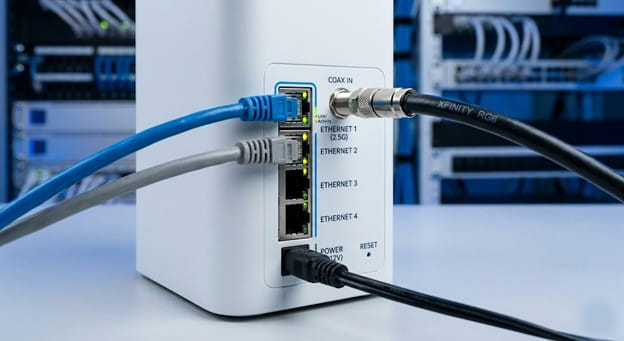
How to Reset a Comcast Xfinity Router In today’s hyper-connected world, a stable internet connection isn’t just a luxury; it is a fundamental necessity for work, education, entertainment, and communication. If you are a Comcast Xfinity customer, your gateway (the combination modem and router unit provided by your ISP) is the beating heart of your home network. However, like all electronic devices, routers can occasionally experience hiccups. You might be dealing with inexplicably slow download speeds, devices randomly dropping their Wi-Fi connection, or a network that refuses to connect to the internet entirely.
When you call technical support, the very first question they will ask you is, “Have you tried resetting your router?” While it sounds like a cliché, resetting your networking equipment is the most effective way to resolve up to 90% of common internet connectivity issues.
However, there is a lot of confusion surrounding the term “reset.” Are you just turning it off and on again, or are you wiping all of your custom settings back to their factory defaults? This comprehensive guide will walk you through everything you need to know about how to reset a Comcast Xfinity router, the critical differences between a restart and a factory reset, and how to get your home network back online quickly and securely.
How to Reset a Comcast Xfinity Router: Restart vs. Reboot vs. Factory Reset
Before you start unplugging cables or pressing buttons on your Xfinity xFi Gateway, it is crucial to understand the terminology. Using the wrong method could result in accidentally wiping all your custom network settings, forcing you to set up your entire smart home from scratch.
The Restart (or Power Cycle / Reboot)
When tech support tells you to “reboot” or “restart” your router, they are referring to a soft reset, also known as a power cycle. This process simply turns the device off, clears its short-term active memory (RAM), and turns it back on again.
A restart does not erase your custom Wi-Fi network name (SSID), your Wi-Fi password, your parental controls, or your custom firewall settings. It is the digital equivalent of taking a quick nap to refresh your brain. You should always try a restart before attempting a factory reset.
The Factory Reset (Hard Reset)
A factory reset is the nuclear option. When you perform a factory reset on your Comcast Xfinity router, you are wiping the device entirely clean. The router will revert to the exact software state it was in the day it rolled off the manufacturing line.
A factory reset will erase:
- Your custom Wi-Fi network name (SSID).
- Your custom Wi-Fi password.
- Your Admin Tool login credentials (reverting the password to “password”).
- Port forwarding configurations used for gaming or home servers.
- Any connected xFi Pods (which will need to be re-paired).
- Custom DNS settings or static IP assignments.
After a factory reset, your router will broadcast the default Wi-Fi network name and password printed on the sticker on the bottom or back of the device.
When Should You Factory Reset Your Xfinity Router?
Because a factory reset requires you to set up your network all over again, it should not be your first line of defense. You should reserve the hard reset for the following specific scenarios:
- Persistent Connectivity Issues: If you have already tried power cycling your router multiple times, and your internet is still crawling at dial-up speeds, dropping connections, or failing to assign IP addresses to your devices, the router’s firmware may have become corrupted. A factory reset can clear out deep-seated software glitches.
- You Forgot Your Wi-Fi Password or Admin Password: If you cannot remember the custom Wi-Fi password you created, and you cannot log into the Xfinity app to check it, a factory reset will revert the password to the default one printed on the bottom of the gateway. Similarly, if you changed the password to the Admin Tool (accessed via 10.0.0.1) and forgot it, a factory reset is the only way to regain access to your router’s advanced settings.
- Network Security Breaches or Malware: If you suspect that a malicious actor has gained access to your network, or if a piece of malware has altered your router’s DNS settings to redirect your traffic, a factory reset will instantly wipe out the intruder’s unauthorized changes.
- Selling or Returning the Equipment: If you are moving, switching internet service providers, or upgrading to a newer xFi Gateway model, you must perform a factory reset before returning the old equipment to Comcast. This ensures your personal data, passwords, and network configurations do not fall into the hands of the next customer who receives refurbished equipment.
How to Restart (Power Cycle) Your Xfinity Router
Before pulling the trigger on a factory reset, try the power cycle method. It takes less than five minutes and fixes the vast majority of problems. There are three ways to do this.
Method 1: The Classic Unplug Method (Recommended)
This is the most reliable way to perform a soft reset, as it physically removes the device from its power source.
- Locate your Xfinity Gateway.
- Follow the power cord from the back of the router to the wall outlet or power strip.
- Unplug the router directly from the power source.
- Wait for at least 60 seconds. This step is critical. Routers have internal capacitors that hold a small electrical charge. Waiting a full minute ensures these capacitors drain completely, allowing the router’s volatile memory to clear out any lingering software bugs.
- Plug the power cord back into the outlet.
- Wait 5 to 10 minutes. The router needs time to boot up, run its internal diagnostics, and re-establish a secure connection with Comcast’s servers. The light on the front (usually white or green, depending on your model) will blink and eventually turn solid when the connection is restored.
Method 2: Restarting via the Xfinity App
If you are away from home or don’t want to dig behind the entertainment center to find the plug, you can restart your gateway using your smartphone.
- Open the Xfinity app on your iOS or Android device.
- Navigate to the Connect tab at the bottom of the screen.
- Select your internet connection/gateway from the list of devices.
- Scroll down and tap on Restart Gateway.
- Confirm your choice. The app will send a signal to your router to reboot. Your Wi-Fi will go down for roughly 5 to 10 minutes while the process completes.
Method 3: Restarting via the Web Portal
You can also send a reboot signal directly from your online Xfinity account using a computer.
- Go to Xfinity.com and log in with your primary Comcast ID and password.
- Navigate to the Devices section.
- Locate your internet gateway and select Troubleshoot or Restart.
- Follow the on-screen prompts to initiate the power cycle.
How to Factory Reset Your Comcast Xfinity Router
If a simple restart did not fix your problem, or if you are locked out of your settings, it is time for a hard factory reset. There are two primary ways to accomplish this.
Method 1: The Physical Reset Button (The Paperclip Method)
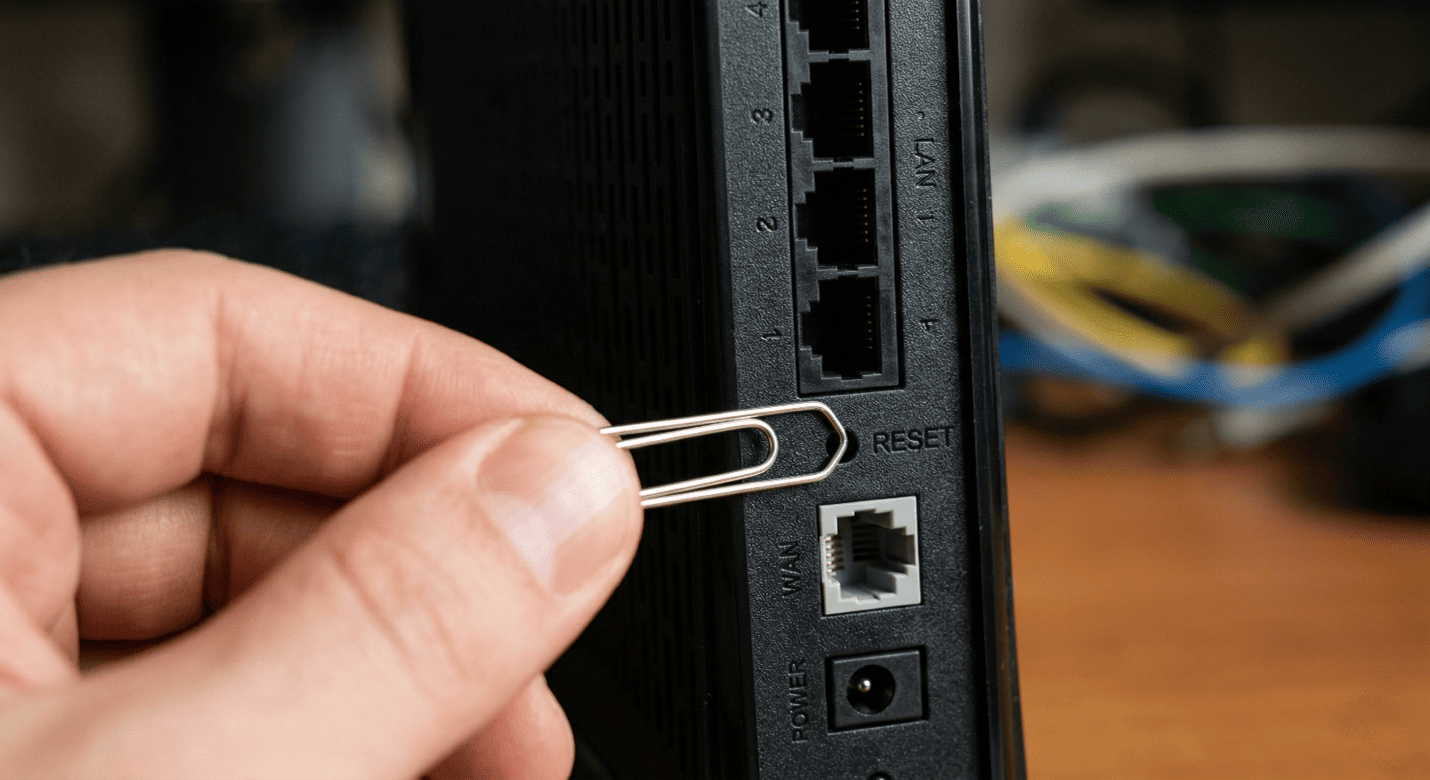
Almost all Xfinity gateways, including the older black tower models and the newer white xFi Gateways (XB6, XB7, and XB8), have a physical reset button. Because this button is designed to prevent accidental presses, it is usually recessed inside a tiny hole on the back of the unit.
Step 1: Keep the router plugged in. The router must have power to perform a factory reset.
Step 2: Locate the reset button. Turn the router around and look at the back panel where the cords plug in. Look for a tiny pinhole labeled “Reset.” (Note: On some newer XB7 or XB8 models, the reset button might be a small physical button on the back that does not require a pin, or it may be integrated into the WPS button. If you have a WPS button instead of a pinhole, press and hold it for 30-60 seconds).
Step 3: Find a tool. If your router has the pinhole design, you will need a straightened paperclip, a SIM card ejector tool, or a toothpick. Do not use a sewing needle, as the sharp point can damage the internal switch.
Step 4: Press and hold. Insert the paperclip into the pinhole and press down. You should feel a distinct “click.”
Step 5: Hold for 30 to 60 seconds. Do not let go. Keep the button pressed until the lights on the front of the router completely turn off and begin to flash. This indicates that the internal memory is being wiped.
Step 6: Release and wait. Pull the paperclip out. The router will now undergo a full reboot sequence. This can take up to 15 minutes as it resets to factory defaults, downloads any necessary firmware updates from Comcast, and reboots again. Do not interrupt this process.
Method 2: Factory Reset via the Admin Tool (10.0.0.1)
If you know your router’s admin password and want to perform the reset from your computer, you can use the web-based Admin Tool.
- Connect your computer to the router (either via Wi-Fi or with an Ethernet cable).
- Open a web browser (Chrome, Safari, Edge) and type 10.0.0.1 into the address bar. Press Enter.
- You will be greeted by the Xfinity Gateway login page.
- Enter your username and password.
- Default Username: admin
- Default Password: password (If you previously changed this and forgot it, you must use Method 1 above).
- Once logged in, look at the menu on the left side of the screen and click on Troubleshooting.
- Click on Reset / Restore Gateway.
- You will see several options. Click on Restore Factory Settings.
- A warning prompt will appear. Confirm that you want to proceed. The router will reboot and wipe all data.
What Happens After a Factory Reset? (The Setup Process)
Once the factory reset is complete and the light on the front of your router is solid white (or solid green on older models), your network is essentially a blank slate. Any devices that were previously connected to your Wi-Fi (phones, smart TVs, laptops, smart home cameras) will be disconnected because your custom network name no longer exists.
Here is how to get your network back up and running:
Step 1: Find the Default Network Information
Look at the sticker on the bottom or back of your Xfinity Gateway. You will see two important pieces of information:
- Network Name (SSID): Usually starts with “HOME-” followed by four alphanumeric characters.
- Network Key / Password: A long string of random letters and numbers.
Step 2: Connect to the Default Network
Open the Wi-Fi settings on your smartphone or laptop. Look for the default Network Name (SSID) from the sticker and connect to it using the default Network Key.
Step 3: Use the Xfinity App to Customize
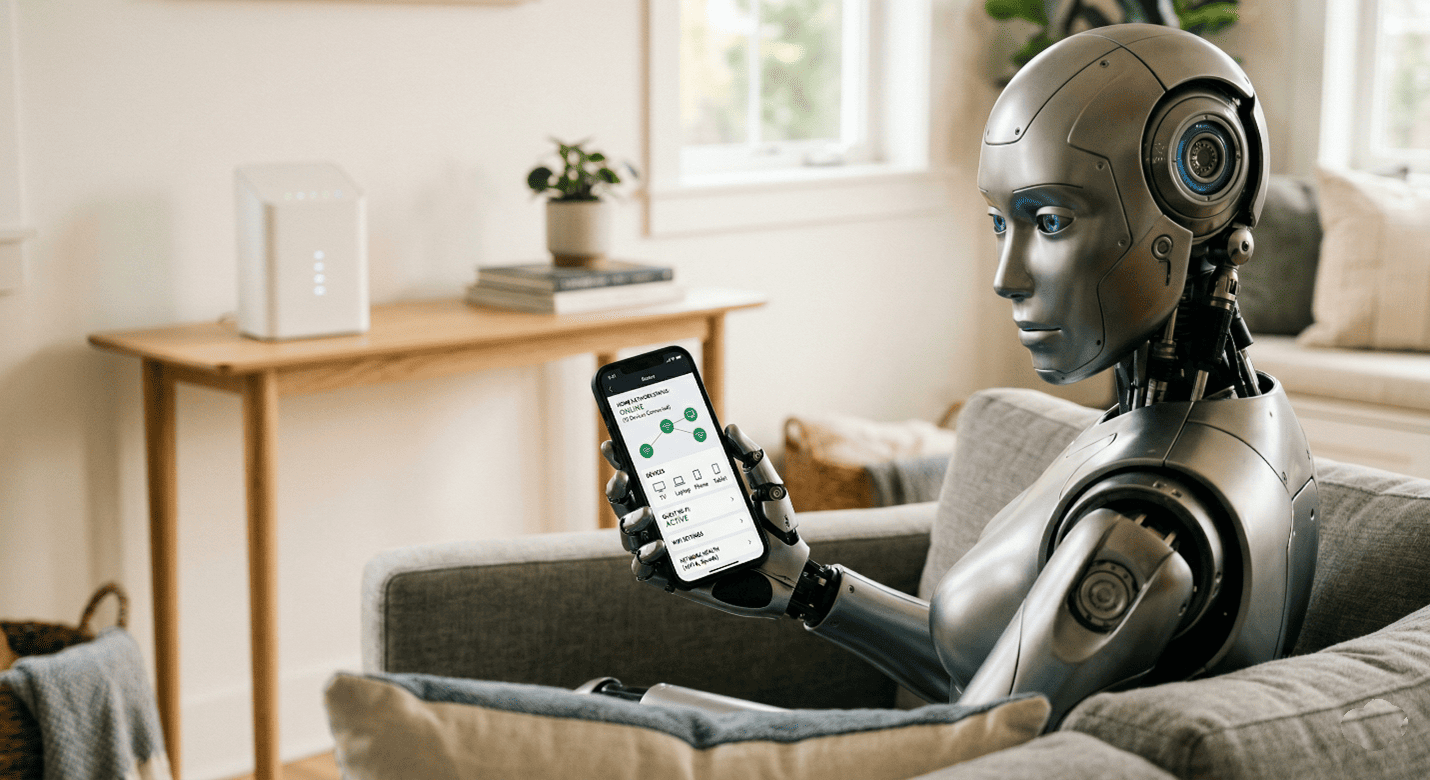
The easiest way to configure your newly reset router is via the Xfinity app.
- Open the app on your phone.
- The app should automatically detect that a gateway is ready to be set up.
- Follow the on-screen prompts to create a new Wi-Fi Network Name and Password. Pro Tip: If you reuse your exact old Wi-Fi name and old Wi-Fi password, most of your devices (like your smart TV and thermostat) will automatically reconnect without you having to type the password into every single device again!
Step 4: Reconnect Devices and Pods
If you changed your network name or password, you must go to every wireless device in your home and connect them to the new network. If you use Xfinity xFi Pods to extend your Wi-Fi range, you will need to open the Xfinity app and go through the pairing process to reconnect them to the gateway.
Troubleshooting: What If the Reset Didn’t Fix the Problem?
If you have performed a full factory reset, set your network back up, and you are still experiencing connection drops or incredibly slow speeds, the issue is likely not a software glitch within the router.
Consider the following troubleshooting steps:
- Check for Outages: Open the Xfinity app using your cellular data or visit the Xfinity Status Center website to see if there is a known service outage in your neighborhood.
- Inspect Your Coaxial Cable: Ensure the coaxial cable (the thick round cable with a pin in the middle) is screwed tightly into both the back of the router and the wall outlet. A loose connection causes massive signal degradation.
- Check for Overheating: Make sure your router is out in the open. If it is stuffed inside a closed cabinet or tucked behind a hot television, it could be overheating and shutting down to protect itself.
- Hardware Failure: If the router is several years old, the internal hardware may simply be failing.
- Contact Comcast Support: If all else fails, it is time to call Xfinity customer service. They can run a remote diagnostic test on your line to check for signal interference. If they determine the gateway is dead, they will send a technician or allow you to swap the unit out at a local Xfinity store for free.
More details can be foundo on here
Frequently Asked Questions (FAQs)
Q: Will resetting my Xfinity router delete my internet history? A: No. Resetting your router does not erase your browsing history. Your browsing history is stored locally on your individual devices (like your phone’s Safari app or your computer’s Chrome browser).
Q: How long does a factory reset take? A: The physical act of holding the button takes about 60 seconds. However, the router will need 10 to 15 minutes to fully wipe its memory, reboot, communicate with Comcast’s servers to download the latest firmware, and broadcast its default Wi-Fi signal.
Q: I pressed the reset button, but my custom Wi-Fi name is still showing up. Why? A: You likely did not hold the reset button down long enough. You must hold it continuously for at least 30 to 60 seconds until all the lights on the router turn off and reset. A quick press will only initiate a soft reboot, which does not erase your custom settings.
Q: Do I have to pay to get a new router if mine is broken? A: If you rent your xFi Gateway from Comcast (paying the monthly equipment fee), Xfinity will replace a broken or malfunctioning router for free. You can typically take the broken unit to a local Xfinity retail store and swap it for a new one the same day.
Q: Does a factory reset update the router’s firmware? A: Yes. When an Xfinity gateway boots up after a factory reset, part of its automated initialization process involves pinging the Comcast servers to check for and download the latest secure firmware version. This is why you must not unplug the router while it is booting back up.
If you want find out about more CLICK HERE