
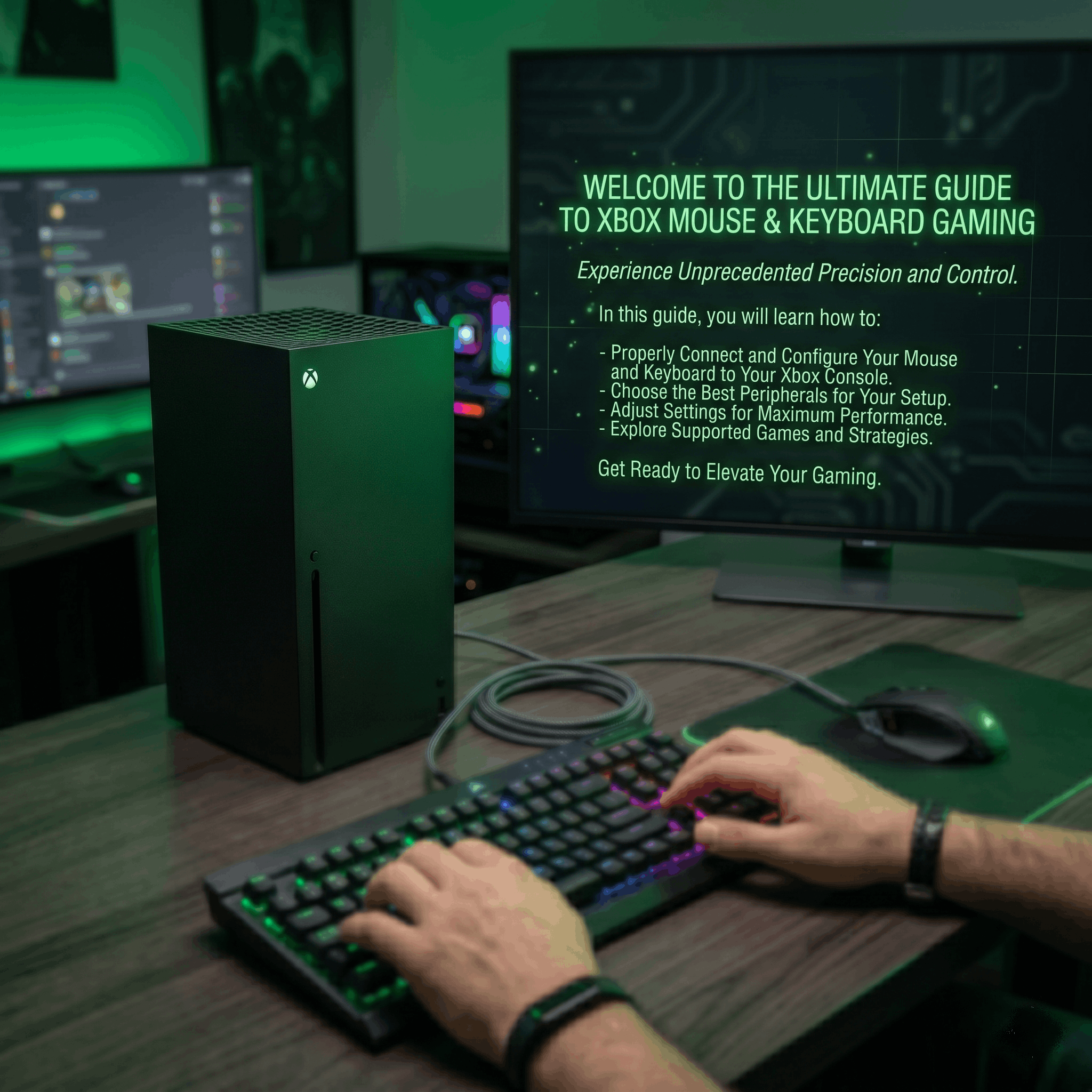
“Can You Use Keyboard and Mouse on Xbox?” For decades, the gaming community has been divided by a seemingly insurmountable wall: console gamers with their controllers on one side, and PC gamers with their keyboards and mice on the other. Controllers offer the comfort of kicking back on a sofa with analog movement, while the keyboard and mouse combo provides unmatched precision, rapid aiming, and endless hotkeys can you use keyboard and mouse on Xbox?
But what if you want the best of both worlds? What if you own a powerful Microsoft console but crave the snappy, pinpoint accuracy of a PC setup for competitive first-person shooters or complex strategy games? This leads to one of the most frequently asked questions in the modern gaming community: can you use keyboard and mouse on Xbox?
The definitive answer is yes. Microsoft has fully embraced cross-input compatibility. However, the long answer is a bit more nuanced. While the physical console hardware supports these peripherals, how they actually function depends entirely on the specific games you are playing.
In this comprehensive, 2000+ word guide, we will break down exactly how to set up your peripherals, configure your settings, troubleshoot common issues, and explore the massive library of games that natively support this feature.
The Short Answer: Can You Use Keyboard and Mouse on Xbox?
Yes, you can absolutely use a keyboard and mouse on modern Xbox consoles. Microsoft officially added native keyboard and mouse support to the Xbox One ecosystem back in November 2018. Since then, this support has carried forward seamlessly into the next generation of consoles, including the Xbox Series X and the Xbox Series S.
From the moment you plug these peripherals into your console’s USB ports, the Xbox operating system will recognize them. You can use your keyboard to navigate the Xbox dashboard, type messages to your friends, search for games in the Microsoft Store, and browse the internet using the Microsoft Edge app.
However, playing games is a completely different story. Microsoft allows peripheral support at the system level, but they leave the decision to implement it in actual games entirely up to the individual game developers.
Why Would You Want to Use a Keyboard and Mouse on Xbox?
If you have spent your whole life playing on a controller, you might be wondering why anyone would want to sit at a desk and use PC peripherals on a console. There are three massive advantages to making the switch.
1. Unmatched Precision and Accuracy
In first-person shooters (FPS) and competitive battle royales, aiming with your thumb on a small plastic stick simply cannot compete with aiming using your entire hand and arm with a mouse. A mouse allows for rapid “flick” shots, micro-adjustments for sniping, and incredibly fast 180-degree turns. When you learn how to use keyboard and mouse on Xbox, you instantly elevate your competitive ceiling.
2. More Buttons and Hotkeys
A standard Xbox controller has 14 buttons, two triggers, and two analog sticks. A standard PC keyboard has 104 keys. In complex games like MMORPGs (Massively Multiplayer Online Role-Playing Games) or real-time strategy games, having dedicated hotkeys for your inventory, spells, maps, and building menus makes the experience infinitely smoother.
3. Bridging the PC and Console Gap
Gaming PCs are incredibly expensive. The Xbox Series X offers performance that rivals a high-end PC at a fraction of the cost. By plugging a keyboard and mouse into an Xbox, you are essentially building a budget-friendly gaming PC setup that can play competitive games at 120 frames per second (FPS) without the $2,000 price tag.
How to Connect Your Keyboard and Mouse to Xbox
Setting up your peripherals is remarkably simple. Microsoft designed the system to be essentially “plug and play.” You do not need to download special drivers or install third-party software like you sometimes do on a PC.
Connecting Wired Keyboards and Mice
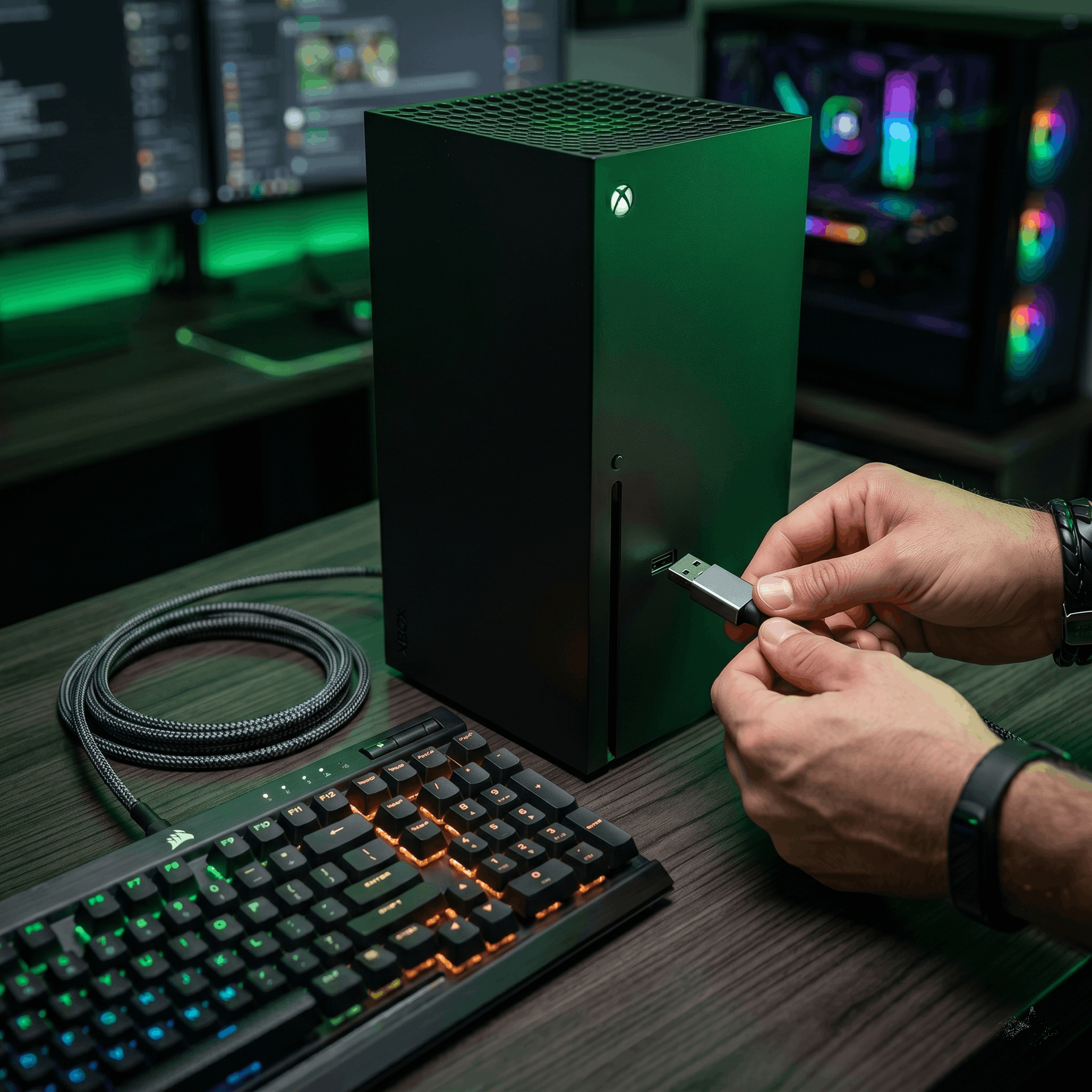
If you have a standard wired USB keyboard and a wired USB mouse, simply locate the USB ports on your console. The Xbox Series X and Series S have one USB port on the front and two on the back. Plug the keyboard into one port and the mouse into another. The console will instantly recognize them, and you will be able to navigate the dashboard using the arrow keys.
Connecting Wireless Keyboards and Mice
Can you use keyboard and mouse on Xbox if they are wireless? Yes, provided they use a USB dongle. If you have a wireless combo that relies on a 2.4GHz USB receiver, plug that receiver into any available USB port on the Xbox. The console will read the signal just like a wired connection.
The Bluetooth Limitation
There is one major caveat: Xbox consoles do not support native Bluetooth connections. Therefore, you cannot connect a purely Bluetooth keyboard or mouse (like an Apple Magic Keyboard) directly to your Xbox. You must use peripherals that feature a dedicated USB dongle or a hardwired cable.
Configuring Your Keyboard and Mouse Settings on Xbox
Once connected, you will want to fine-tune your settings to ensure your mouse feels snappy and responsive. The Xbox operating system has a dedicated menu just for this.
-
Press the Xbox Button on your controller to open the guide.
-
Navigate right to Profile & system, then select Settings.
-
Scroll down to the Devices & connections tab.
-
Select Mouse.
In this menu, you can configure several important settings:
-
Pointer Speed: This adjusts your mouse sensitivity. If your cursor moves too slowly across the screen, bump this slider up. If it feels jittery and uncontrollable, lower the speed.
-
Swap Primary and Secondary Buttons: If you are left-handed and prefer to use your mouse in your left hand, you can swap the left-click and right-click functions here.
Pro Tip: For the best gaming experience, it is highly recommended to purchase a mouse with physical DPI (Dots Per Inch) buttons on the mouse itself. This allows you to change your sensitivity on the fly without having to pause your game and enter the Xbox settings menu.
The Catch: Game Compatibility and Developer Choices
Here is the most critical piece of information in this entire guide: just because the Xbox dashboard supports your keyboard and mouse does not mean your favorite game will.
When people ask, “can you use keyboard and mouse on Xbox?”, they usually follow it up with, “Can I play every game with it?” The answer is no. Microsoft allows it, but game developers have to intentionally program keyboard and mouse support into their console games.
Why Don’t All Games Support It?
The primary reason is competitive balance. In a multiplayer game, a player using a mouse has a massive physical advantage over a player using a controller. If a developer forced controller players to play against mouse players, the controller players would get frustrated and quit.
To solve this, games that do support keyboard and mouse on Xbox usually utilize Input-Based Matchmaking.
What is Input-Based Matchmaking?
Input-based matchmaking is a system where the game detects what you are using to control your character. If you load into Call of Duty with an Xbox controller, the game will put you in lobbies against other controller players (on Xbox, PlayStation, and PC).
However, the moment you plug a keyboard and mouse into your Xbox and use it in the menu, the game detects the change. It will immediately pull you out of the controller lobbies and place you in PC lobbies against other keyboard and mouse players. This ensures the game remains fair and balanced for everyone.
Top Games That Support Keyboard and Mouse on Xbox
The list of games supporting this feature grows every single month. Currently, there are over 100 titles that offer native, plug-and-play support for PC peripherals. Here are some of the most popular genres and titles where you can take advantage of your new setup.
First-Person Shooters and Battle Royales
This is where keyboard and mouse players thrive. The precision of a mouse makes flick shots and sniper tracking incredibly easy.
-
Call of Duty: Warzone & Modern Warfare III: Offers flawless native support and full key-binding customization.
-
Fortnite: Epic Games was one of the first to implement input-based matchmaking, allowing you to build and edit structures at lightning speed.
-
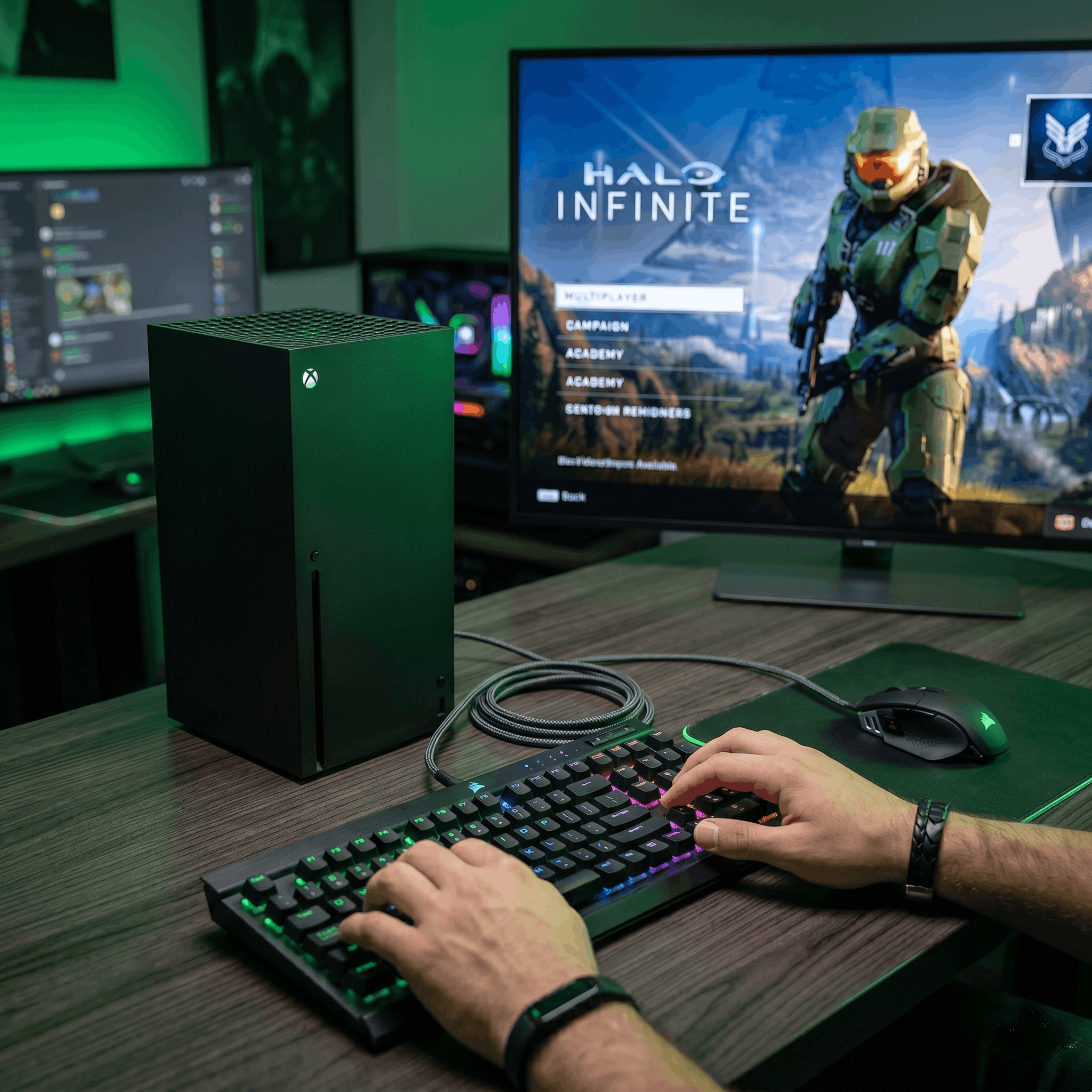
Halo Infinite: Microsoft’s flagship shooter offers full support, allowing console players to compete seamlessly with PC friends.
-
Cyberpunk 2077: While single-player, navigating the massive menus and aiming weapons feels much better on a mouse.
Strategy and Simulation Games
Real-time strategy (RTS) games are notoriously difficult to play on a controller. By answering “can you use keyboard and mouse on Xbox” with a yes, Microsoft opened the door for PC-centric genres to thrive on consoles.
-
Microsoft Flight Simulator: Navigating the complex cockpits of commercial airliners is vastly easier with a mouse.
-
Age of Empires II & IV: These legendary RTS games are fully playable on Xbox, and using a mouse allows you to select units and command armies just like you would on a PC.
-
The Sims 4: Building houses and navigating the extensive menus is tedious on a controller but effortless with a mouse.
MMOs and Survival Games
Games with massive inventories and complex crafting systems benefit heavily from the 104 keys on a standard keyboard.
-
Minecraft: You can easily map your hotbar items to number keys for rapid building and combat.
-
Sea of Thieves: Sailing a galleon requires communication and quick access to tools; a keyboard makes typing in the text chat infinitely faster.
-
Terraria: Mining and building in 2D is much more precise with a mouse cursor.
Xbox Cloud Gaming and Keyboard Support
Cloud gaming is the future, and Microsoft’s Xbox Cloud Gaming (part of Xbox Game Pass Ultimate) allows you to stream console games directly to your PC, phone, or smart TV without downloading them.
Historically, Cloud Gaming only supported controllers. However, Microsoft has officially rolled out keyboard and mouse support for select titles on Xbox Cloud Gaming via web browsers (Edge and Chrome) and the Xbox PC app.
If you do not own an Xbox console but want to play Xbox games on your work laptop using the peripherals already sitting on your desk, this feature is a massive game-changer. Titles like Sea of Thieves, Halo Infinite, and Grounded are leading the charge for cloud-based keyboard and mouse streaming.
The Best Keyboards and Mice for Xbox
If you are convinced and ready to make the switch, you might be wondering what hardware to buy. While any cheap $15 USB office keyboard will work, investing in gaming-specific peripherals will yield much better results.
1. The Razer Turret for Xbox
If you play your Xbox on a couch in the living room rather than at a desk, the Razer Turret is the ultimate solution. This is a premium, officially licensed wireless keyboard and mouse combo designed specifically for the Xbox. It features a built-in, slide-out magnetic mousepad that rests on your lap, allowing you to game comfortably from your sofa. It even features a dedicated Xbox dashboard button.
2. Standard Wired Mechanical Keyboards
If you sit at a desk, a wired mechanical keyboard (from brands like Corsair, Logitech, or SteelSeries) is your best bet. Mechanical switches provide physical feedback when pressed, ensuring your keystrokes are registered instantly. Because you do not have to worry about battery life or wireless interference, wired is still the king of competitive gaming.
3. Lightweight Gaming Mice
For your mouse, look for something lightweight with a high-quality optical sensor. The Logitech G Pro Wireless or the Razer DeathAdder series are excellent choices. They provide smooth tracking, customizable DPI settings, and side buttons that you can map to specific actions (like throwing grenades or melee attacks) in your Xbox games.
Troubleshooting Common Keyboard and Mouse Issues on Xbox
Sometimes, technology has a mind of its own. If you are struggling to get your setup working, here are the most common issues and how to fix them.
1. The Mouse Cursor is Not Appearing on the Screen
-
Fix: The Xbox dashboard does not display a mouse cursor on the home screen. You can only use the keyboard arrow keys to navigate the Xbox menus. The mouse cursor will only appear once you launch a web browser (like Edge) or load into a compatible game.
2. The Keyboard Works, But the Game Won’t Let Me Play
-
Fix: You are likely playing a game that does not support keyboard and mouse. If a developer has not implemented the feature, the game will ignore your keyboard inputs and demand that you press “A” on an Xbox controller to start.
3. My Mouse Feels “Floaty” or Laggy
-
Fix: This is a common issue known as “input lag.” Ensure your TV is set to “Game Mode” in its picture settings to reduce display latency. Additionally, try lowering the “Pointer Speed” in the Xbox device settings, and check if your specific mouse requires a firmware update (which must be done on a PC before plugging it back into the Xbox).
4. My Third-Party Adapter Isn’t Working
-
Fix: Some players use third-party adapters (like the XIM Apex) to “trick” the Xbox into thinking their keyboard and mouse is actually a controller. This allows them to use a mouse on games that do not natively support it. Warning: Microsoft and game developers (like Ubisoft with Rainbow Six Siege) are actively cracking down on these adapters. Using them is considered cheating and can result in a permanent ban from the game. Always stick to native, officially supported methods.
For more information CHECK here
Frequently Asked Questions (FAQs)
Q: Can you use a keyboard and mouse on Xbox One, or is it only for Series X/S? A: Yes, you can use them on the older generation as well. The Xbox One, Xbox One S, and Xbox One X all support native keyboard and mouse functionality, exactly like the newer Series X and S consoles.
Q: Do I need to buy a special “Xbox-branded” keyboard? A: Not at all. Any standard USB keyboard and mouse—whether it is a $10 Amazon Basics model or a $200 custom mechanical board—will plug in and work instantly.
Q: Can I use voice chat with a keyboard and mouse setup? A: Yes, but you must plug your gaming headset either directly into the console via USB, or plug your headset into an Xbox controller that is sitting next to you, turned on, and connected to your profile.
Q: Will I get banned for using a keyboard and mouse? A: No. As long as you are using the native plug-and-play USB method, you will not get banned. You are only placed into PC lobbies. You will only face bans if you use illegal third-party spoofing adapters to cheat in controller-only lobbies.
Conclusion
The wall between PC gaming and console gaming has finally crumbled. So, can you use keyboard and mouse on Xbox? Absolutely. By simply plugging your peripherals into the console’s USB ports, you can completely transform your living room entertainment center into a highly competitive, budget-friendly PC replacement.
While not every single game supports the feature, the list of compatible titles includes some of the biggest shooters, strategy games, and MMOs on the market. Whether you want to click heads with sniper precision in Call of Duty or seamlessly manage your economy in Age of Empires, adding a keyboard and mouse to your Xbox arsenal is one of the smartest upgrades a gamer can make.
If you want to look for more content CLICK HERE