
The Apple Watch is one of the most refined wearables ever made, but if you’ve never set one up before, the process can feel a little daunting. The good news? Apple has designed the setup experience to be smooth, intuitive, and guided every step of the way. Whether you’ve just unboxed an Apple Watch Series 10, an Ultra 2, or an SE, this guide walks you through the full setup from the moment you lift it out of the box.
By the end of this guide, your watch will be paired, personalised, and ready to track your health, take calls, send messages, and much more.
Before You Begin -What You’ll Need
Before you start the setup process, make sure you have everything in order. An incomplete preparation can interrupt the setup midway, which is frustrating. Here’s what you need:
- A compatible iPhone
All Apple Watches require an iPhone to set up. As of 2026, you need an iPhone XS or later running iOS 17 or higher. Check your iPhone’s software version under Settings > General > About.
- Your Apple ID credentials
You’ll need to sign in with your Apple ID during setup. Make sure you know your password, or have Face ID / Touch ID ready to authenticate.
- A stable Wi-Fi connection
Setup involves downloading software and syncing data. A reliable Wi-Fi connection makes the process faster and prevents errors.
- The Apple Watch and its charger
You’ll want to start by replacing the battery in the watch. Apple recommends at least 50% charge before a major update or full setup.
1. Unboxing Your Apple Watch
Apple’s packaging is famously minimalist and satisfying to open. Inside the box, you’ll find the Apple Watch itself, a magnetic charging cable (or charging puck for older models), a USB-C or USB-A power adapter depending on the model, and the band(s) you ordered.
Start by carefully removing the watch from its tray. The bands may already be attached, or they may be in a separate compartment underneath the watch tray. If you ordered additional bands, set those aside for now.
To attach a band if it isn’t already on: hold the watch face down, then slide the band into the groove at the top or bottom of the watch case. You’ll hear a satisfying click when it’s locked in. To remove a band, press and hold the small band release button on the back of the case, then slide it out.
NOTE
Make sure the band is fully seated before wearing the watch. A loosely attached band could cause the watch to fall off your wrist.
2. Charging the Apple Watch for the First Time
Apple recommends charging your watch before the initial setup. Place the magnetic charging cable onto the back of the Apple Watch. The magnets will snap it into place automatically. Connect the other end to a power source (the included adapter or a USB-C port on your MacBook).
You’ll see a green lightning bolt icon on the screen, confirming the watch is charging. While it charges, it’s a good time to update your iPhone. Allow the watch to charge for at least 30 minutes before beginning setup, ideally until it reaches 80% or more.
Charging speeds vary by model. Apple Watch Series 9 and later support fast charging, reaching 80% in about 45 minutes with the correct USB-C charger. Older models may take up to 2 hours to reach a full charge.
3. Pairing with Your iPhone
This is the core of the setup process. Pairing links your Apple Watch permanently to your iPhone; all your data, apps, settings, and Apple ID flow through this connection.
STEP-BY-STEP PAIRING PROCESS
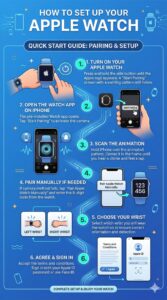
- Turn on your Apple Watch
Press and hold the side button (the long button on the right side of the watch) until you see the Apple logo. The watch will boot up and display a “Start Pairing” screen with an animated pattern.
- Open the Watch app on your iPhone
The Watch app comes pre-installed on all iPhones. Open it and tap “Start Pairing.” Your iPhone’s camera will activate.
- Scan the animation on the watch face
Hold your iPhone over the swirling pattern shown on the Apple Watch screen. Position the pattern within the viewfinder frame on your iPhone. You’ll hear a chime and feel a haptic tap when pairing is successful.
- Pair manually if needed
If the camera method doesn’t work, tap “Pair Apple Watch Manually” and follow the on-screen instructions to enter the 6-digit code shown on the watch’s screen.
- Choose your wrist
Select which wrist you plan to wear the watch on — Left or Right. This affects how the watch is oriented and how it detects wrist raises.
- Agree to the terms and sign in with Apple ID
Review and accept the Terms and Conditions. Enter your Apple ID password (or use Face ID) to sign in and activate the watch with your account.
4. Restoring from Backup or Setting Up as New
Apple gives you the option to restore your Apple Watch from a previous backup or set it up fresh. This step appears during the setup flow on your iPhone.
If this is your first Apple Watch, choose “Set Up as New Apple Watch.” This gives you a clean slate with default settings.
If you’re upgrading from an older Apple Watch, choose “Restore from Backup.” Your iPhone will list available backups. Select the most recent one. This restores your apps, watch faces, health data, and most settings automatically, saving you significant setup time.
TIP
If your backup is from a significantly older watchOS version, expect the watch to download and install a software update immediately after setup. Keep it on the charger while this happens.
5. Choosing Your Watch Face
Once pairing is complete, your watch will display its default face. Apple Watch offers dozens of faces from the information-dense Modular to the elegant Hermès-style faces. Personalising your watch face is one of the most satisfying parts of setting up a new Apple Watch.
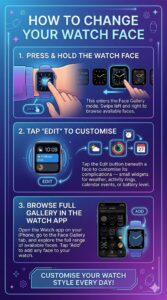
HOW TO CHANGE YOUR WATCH FACE
- Press and hold the watch face
This enters the Face Gallery mode. Swipe left and right to browse available faces.
- Tap “Edit” to customise
Tap the Edit button beneath a face to customise its complications — the small widgets that show information like weather, activity rings, calendar events, or battery level.
- Browse the full face gallery in the Watch app
Open the Watch app on your iPhone, go to the Face Gallery tab, and explore the full range of available faces. Tap “Add” to add any face to your watch.
You can add multiple faces and switch between them by swiping left or right on the watch face. Many people set up a “work” face loaded with calendar and reminders complications, and a “fitness” face showing activity metrics.
6. Configuring Notifications on Apple Watch Setup
Your Apple Watch mirrors your iPhone’s notifications by default. During setup, you’ll be asked whether to mirror your iPhone settings or configure custom notifications. For most users, mirroring is the easiest starting point; you can always fine-tune later.
To manage notifications after setup, open the Watch app on your iPhone, scroll down to Notifications, and tap any app to customise how it delivers alerts to your wrist. You can choose to allow, silence, or show only the notification indicator dot.
TIP
Turn off notifications for apps you check infrequently. A cluttered notification stream reduces the value of having a watch and can distract from more useful alerts.
7. Setting Up Health and Fitness Features of Apple Watch Setup
The Apple Watch is one of the most powerful health monitoring devices available to consumers. Getting your health setup right from day one means more accurate data and personalised insights.
HEALTH APP AND PERSONAL DETAILS
Open the Health app on your iPhone. Tap your profile picture in the top right corner, then tap Health Details. Enter your date of birth, height, weight, and biological sex. This data is used to calculate calorie burn, VO2 Max, and other metrics accurately.
ACTIVITY RINGS
On your Apple Watch, open the Activity app. On first launch, you’ll be asked to set your Move goal, the number of active calories you want to burn each day. Start conservatively; you can always raise it later. The three rings represent Move (active calories), Exercise (minutes of brisk activity), and Stand (hours in which you stood for at least one minute).
- Move (Red Ring)
Tracks active calories burned throughout the day. Set a daily goal that challenges but doesn’t overwhelm you.
- Exercise (Green Ring)
Records minutes of brisk movement. Apple counts any activity with intensity similar to a brisk walk or higher.
- Stand (Blue Ring)
Encourages you to stand and move for at least one minute every hour. The goal is 12 hours per day.
HEART RATE AND ECG
Heart rate monitoring is automatic. The Apple Watch measures your heart rate continuously throughout the day and alerts you if it detects an irregular rhythm, a heart rate that is too high or too low, or signs of atrial fibrillation (on supported models). To enable these alerts, open the Health app, scroll to Heart, and turn on the relevant notifications.
If you have a Series 4 or later, you also have access to the ECG app. Open it from the watch face, rest your finger on the Digital Crown, and hold still for 30 seconds. The result is recorded in the Health app and can be shared with your doctor.
SLEEP TRACKING
Apple Watch supports sleep tracking, which measures your sleep duration and stages. To set it up, open the Health app on your iPhone and navigate to Browse > Sleep. Follow the prompts to set a sleep schedule and a Wind Down routine. Make sure to enable Charging Reminders so your watch is charged before bedtime.
CRASH DETECTION AND EMERGENCY SOS
On Apple Watch Series 8 and later, Crash Detection is automatically enabled. The watch can detect if you’ve been in a severe car accident and call emergency services. Emergency SOS is available on all models: press and hold the side button to trigger a call to local emergency services. In Settings > Emergency SOS, you can add emergency contacts who will be notified with your location.
8. Apple Pay and Apple Watch Wallet Setup
One of the most convenient Apple Watch features is the ability to pay contactlessly directly from your wrist without reaching for your phone or wallet. Setting it up takes just a few minutes.
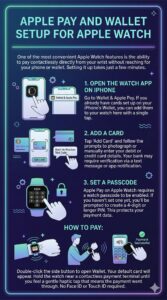
- Open the Watch app on your iPhone
Go to Wallet & Apple Pay. If you already have cards set up on your iPhone’s Wallet, you can add them to your watch here with a single tap.
- Add a card
Tap “Add Card” and follow the prompts to photograph or manually enter your debit or credit card details. Your bank may require verification via a text message or app notification.
- Set a passcode
Apple Pay on Apple Watch requires a watch passcode to be enabled. If you haven’t set one yet, you’ll be prompted to create a 4-digit or longer PIN. This protects your payment data.
To pay, double-click the side button on your watch to open Wallet. Your default card will appear. Hold the watch near a contactless payment terminal until you feel a gentle haptic tap that means the payment went through. No Face ID or Touch ID required.
9. Installing Apps on Apple Watch Setup
Many apps from your iPhone automatically install their companion watch app when you pair. You may not notice they just appear in your app grid. But you can manage which apps appear on your watch and discover new watch-specific apps through the App Store on the watch itself.
MANAGING APPS FROM THE WATCH APP
On your iPhone, open the Watch app and scroll through the list of installed apps. Toggle each app’s “Show App on Apple Watch” switch to control whether it appears on the watch. This is useful for removing apps you never use on your wrist to keep things tidy.
THE APP STORE ON APPLE WATCH
Press the Digital Crown to go to your home screen. Find the App Store (blue icon with a star) and open it. You can browse featured apps, search by category, or search by name. Many apps, such as Carrot Weather, Fantastical, Overcast, and Streaks, offer exceptional Apple Watch experiences worth exploring.
RECOMMENDED STARTING APPS
Streaks for habit tracking, Waterllama for hydration, Carrot Weather for weather complications, and Nano for audiobooks are among the best-in-class Apple Watch apps worth installing early.
10. Accessibility and Personalisation of Apple Watch Setup
Apple Watch offers extensive accessibility features. To access them, open the Watch app on your iPhone and scroll to Accessibility, or go to Settings > Accessibility on the watch itself.
KEY ACCESSIBILITY FEATURES
AssistiveTouch allows you to control the watch using hand gestures, especially useful if you have limited hand mobility. VoiceOver reads screen content aloud. Zoom magnifies the display. Bold Text and Larger Text increase legibility. Reduce Motion tones down animations if you find them distracting or disorienting.
SOUNDS AND HAPTICS
Navigate to Settings > Sound & Haptics on your watch to adjust volume and haptic intensity. “Prominent Haptic” sends a stronger tap before key alerts, which is helpful in noisy environments. You can also mute the watch by covering the display with your palm after receiving a notification. This gesture silences the alert immediately.
DISPLAY AND BRIGHTNESS
In Settings > Display & Brightness on your watch, you can control screen brightness, text size, and whether the watch is always-on (on models that support it). The Always-On Display is one of Apple Watch’s most useful features. Your watch face remains dimly visible without raising your wrist, useful when you’re in meetings or carrying bags.
11. Tips to Get the Most Out of Your Apple Watch
Set up complete, but the real value of Apple Watch reveals itself over time. Here are the most impactful things to do in your first week:
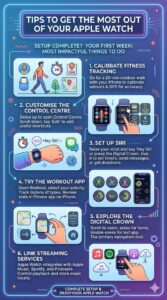
- Calibrate your fitness tracking
Go for a 20-minute outdoor walk with your iPhone in your pocket to calibrate the watch’s motion sensors and GPS. This improves calorie and distance accuracy for future workouts.
- Customise the Control Centre
Swipe up from the watch face to open Control Centre. Scroll to the bottom and tap Edit to add or remove shortcuts. Things like Wallet, Ping My iPhone, Theatre Mode, and Water Lock are worth adding.
- Set up Siri
Simply raise your wrist and say “Hey Siri” or press and hold the Digital Crown. Use it to set timers, send messages, start workouts, or get directions without ever touching your phone.
- Try the Workout app
Open Workout, select your activity, and go. Apple Watch tracks dozens of workout types from running and swimming to yoga and Pilates. After each workout, review your stats in the Fitness app on your iPhone.
- Explore the Digital Crown
The Digital Crown is your primary navigation tool. Scroll it to zoom, scroll through lists, or adjust values. Press it to go home. Double-press to return to the last app. Turn it on when using Maps or Scribble to input text.
- Link your streaming services
Apple Watch integrates with Apple Music, Spotify, and Podcasts. You can control playback from your wrist and even store music locally on the watch for runs without your phone.
FAQs:
1. How do I start setting up my Apple Watch?
To begin, turn on your Apple Watch by pressing and holding the side button. Bring it close to your iPhone, and a setup screen will appear automatically. Tap “Continue” on your iPhone to start the process.
2. Do I need an iPhone to set up an Apple Watch?
Yes, you need an iPhone (iPhone 8 or later with the latest iOS) to set up and use an Apple Watch. It cannot be fully set up without an iPhone.
3. How do I pair my Apple Watch with my iPhone?
Open the Watch app on your iPhone, tap “Start Pairing,” and use your iPhone camera to scan the animation displayed on your Apple Watch screen. This will automatically pair the devices.
- Can I set up Apple Watch manually instead of using the camera?
Yes, you can choose “Pair Apple Watch Manually” on your iPhone and follow the on-screen instructions to enter a code displayed on your watch.
5. Should I set up my Apple Watch as new or restore from backup?
If this is your first Apple Watch, choose “Set Up as New.” If you’ve used one before, you can restore from a backup to keep your previous settings and data.
6. How do I sign in with my Apple ID during setup?
During setup, you’ll be prompted to enter your Apple ID and password. This allows you to access features like iCloud, App Store, and Apple Pay.
7. How do I enable health and fitness tracking?
You’ll be asked to enter details like age, weight, and height. This helps the Apple Watch track your fitness metrics accurately, including steps, calories, and heart rate.
8. How long does Apple Watch setup take?
The full setup process usually takes 10–20 minutes, depending on your internet speed and whether you’re restoring from a backup.
Conclusiton
Setting up an Apple Watch is a simple and user-friendly process when you follow the right steps. From pairing it with your iPhone to customizing settings, installing apps, and enabling health tracking, each step is designed to give you a smooth start. Whether you’re a beginner or upgrading to a new model, the setup process ensures your device is ready to support your daily routine, fitness goals, and productivity needs.
By taking a few minutes to complete the setup properly, you unlock the full potential of your Apple Watch, turning it into a powerful companion for communication, health monitoring, and smart convenience. Once everything is set, you can explore its features confidently and make the most out of your smartwatch experience.