
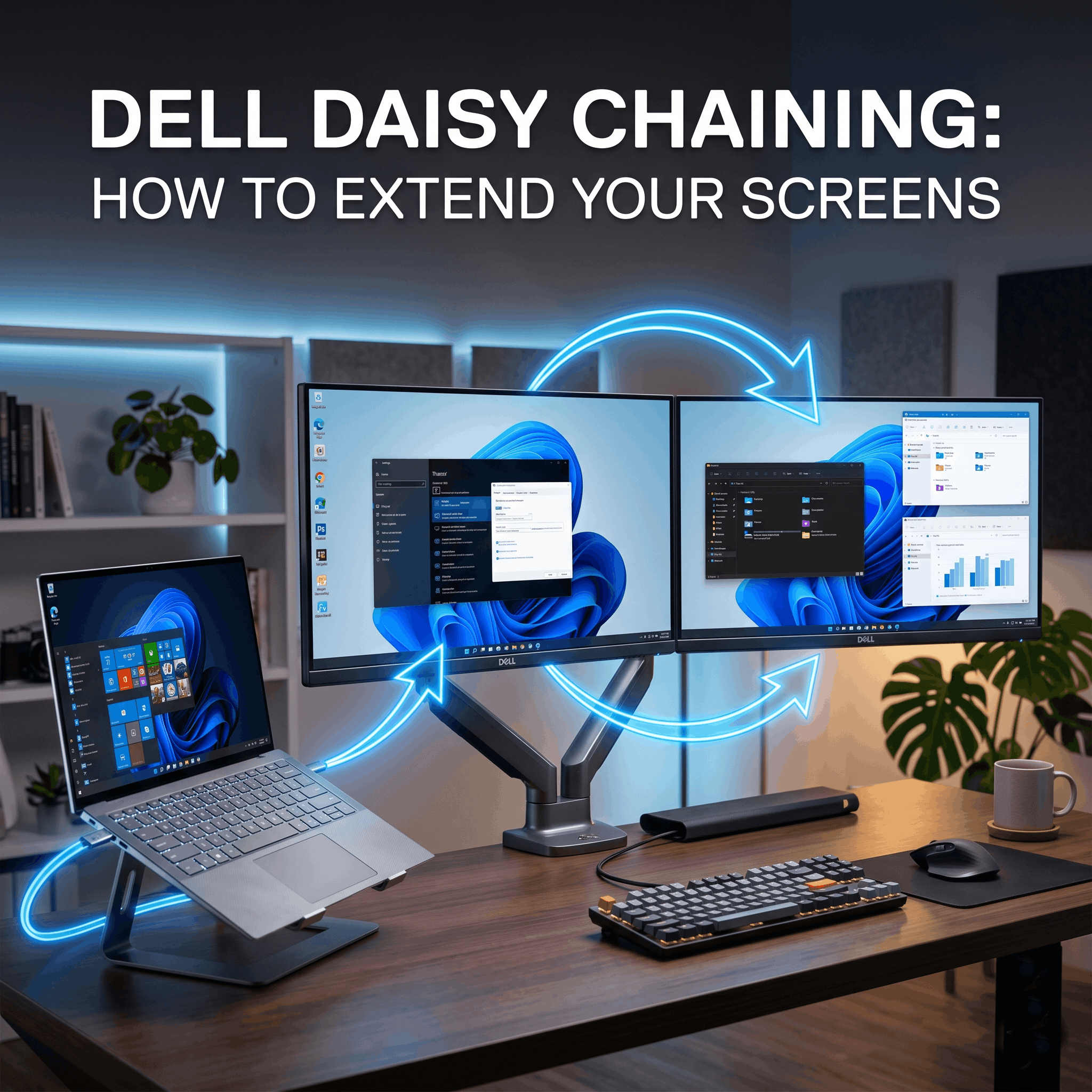
“Can I Extend to Dell Monitor by Connecting Each Other?” In the modern digital workspace, a single monitor is rarely enough. Whether you are editing high-definition videos, managing complex spreadsheets, coding, or simply trying to keep your email open while you work on a presentation, multiple screens are the ultimate productivity hack. But as you add more displays to your desk, you quickly run into a frustrating physical limitation: cable clutter and a lack of available ports on your computer.
If you have recently purchased multiple Dell displays, you might be looking at the back of the screens and asking yourself: can I extend to Dell monitor by connecting each other directly, rather than plugging every single monitor all the way back into my computer?
The short answer is an absolute yes. This process is known as “daisy chaining.”
However, daisy chaining is not as simple as plugging any cable into any port. It requires specific hardware, the right type of cables, and a clear understanding of your computer’s graphical capabilities. In this comprehensive, 2000+ word guide, we will break down exactly how to extend your Dell monitors by connecting them to each other, the difference between extending and mirroring, the hardware you need, and how to troubleshoot common issues.
What is Daisy Chaining (and How Does it Work?)
Before diving into the technical steps, it is vital to understand the technology that allows displays to communicate with one another.
Daisy chaining is a wiring scheme in which multiple devices are wired together in a sequence or a ring. In the context of computer monitors, it means connecting Monitor A to your PC, and then connecting Monitor B directly to Monitor A, rather than running a second cable from Monitor B back to your PC.
This is made possible by a technology called Multi-Stream Transport (MST). Introduced with the DisplayPort 1.2 standard, MST allows a single video output port on your computer to send multiple independent video signals down a single cable. The first monitor in the chain receives this bundled signal, takes the video data meant for its screen, and passes the remaining video data down the chain to the next monitor.
Extending vs. Mirroring
When people ask, “can I extend to Dell monitor by connecting each other?”, they are usually looking for an extended desktop.
-
Mirroring (Duplicating): Both monitors show the exact same image. This is useful for presentations but terrible for productivity.
-
Extending: Your computer treats both monitors as one giant, continuous workspace. You can drag a window from your left screen over to your right screen. MST allows for true extending.
Hardware Requirements: What Can I do to Extend to Dell Monitor by Connecting Each Other
You cannot daisy chain using standard HDMI cables or older VGA/DVI connections. The technology strictly relies on high-bandwidth connections. To successfully extend to a Dell monitor by connecting them to each other, you need to check off the following hardware requirements:
1. A Compatible Graphics Card (GPU)
Your computer’s graphics card must support DisplayPort 1.2 (or higher) with Multi-Stream Transport (MST). Fortunately, almost all modern Windows laptops and desktop GPUs (NVIDIA, AMD, and Intel Integrated Graphics) manufactured in the last five to seven years support this standard natively.
2. The Primary Monitor (Monitor A) Must Have a “DisplayPort Out” Port
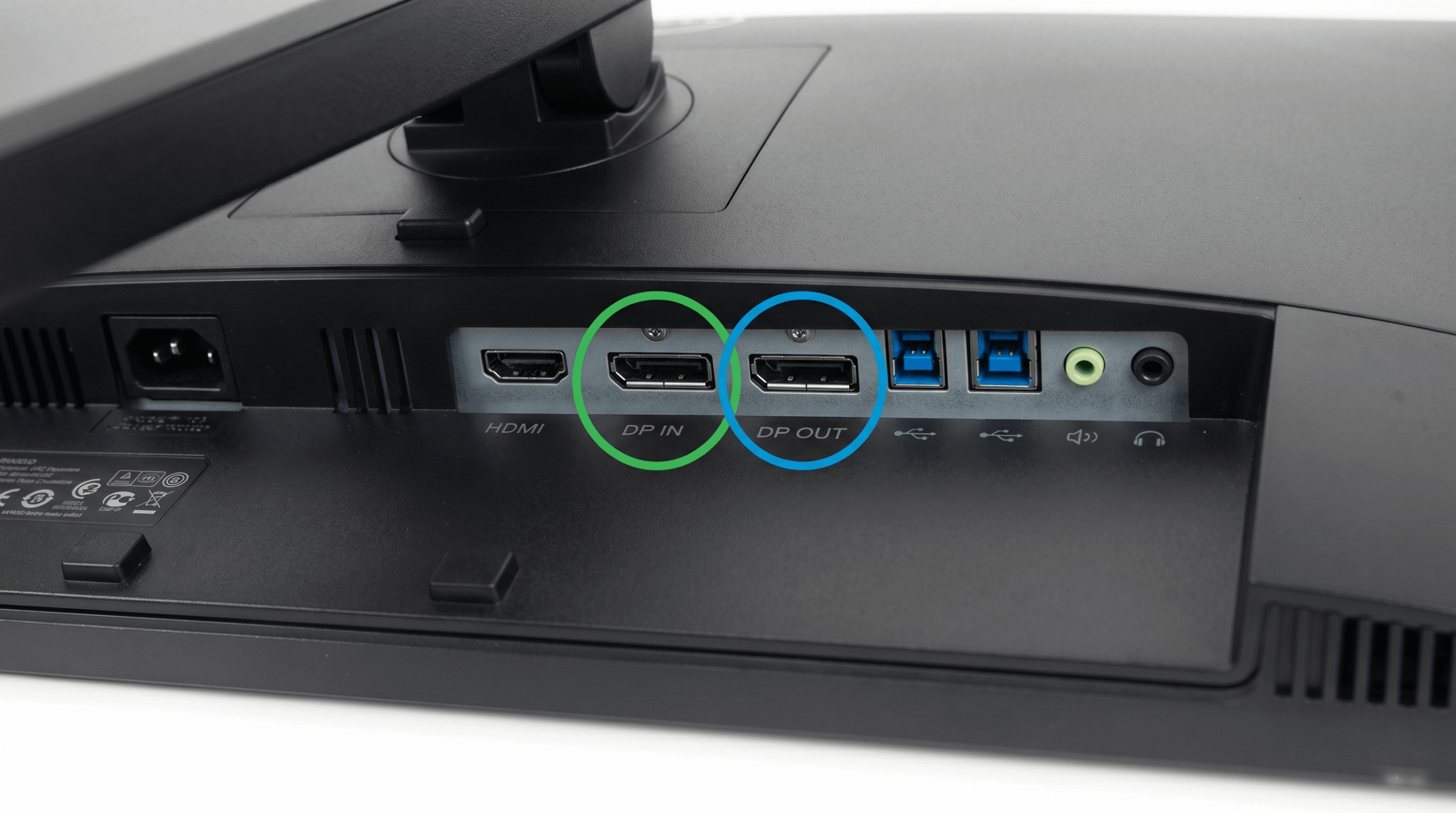
This is where most people get tripped up. Not all monitors can be the “middleman” in a daisy chain. Your primary monitor—the one connected directly to your computer—must feature a specific port labeled DP OUT (DisplayPort Out). Most standard monitors only have “DP IN” ports. Dell specifically designs many of its UltraSharp (U-series) and Professional (P-series) monitors with DP OUT ports exactly for this purpose.
3. The Secondary Monitor (Monitor B)
The last monitor in the chain does not need a “DP OUT” port. It only needs a standard DisplayPort IN port. Therefore, your secondary monitor can be an older or cheaper model, as long as it has a DisplayPort input.
4. The Right Cables
You will need high-quality DisplayPort cables. If you are using a modern laptop without a full-sized DisplayPort, you can use a USB-C to DisplayPort cable to connect the laptop to the first monitor, and then a standard DisplayPort to DisplayPort cable to connect the two monitors together.
Can I Extend to Dell Monitor by Connecting Each Other Using Mac?
This is the most critical caveat in the entire daisy-chaining ecosystem. If you are a Windows user, DisplayPort MST works flawlessly. However, if you are an Apple user, things get complicated.
macOS does NOT support DisplayPort MST for extending displays. If you connect a Mac to Monitor A, and then daisy chain Monitor A to Monitor B using standard DisplayPort MST, macOS will simply mirror the image. You will see the exact same desktop on both Dell monitors. Apple has historically chosen not to support the MST protocol within its operating system.
The Mac Workaround: Thunderbolt Daisy Chaining
If you are asking “can I extend to Dell monitor by connecting each other” while using a Mac, there is only one way to achieve an extended desktop: Thunderbolt 3 or Thunderbolt 4.
Both your computer and both of your monitors must natively support Thunderbolt daisy chaining. Thunderbolt has enough bandwidth to carry multiple uncompressed video streams natively, bypassing the need for DisplayPort MST. Dell makes several high-end Thunderbolt monitors (like the U2724DE), but they are significantly more expensive than standard DisplayPort models.
Step-by-Step Guide: How to Daisy Chain Dell Monitors via DisplayPort
If you have confirmed that your PC supports MST, your first Dell monitor has a DP OUT port, and your second monitor has a DP IN port, you are ready to set up your extended workspace. Follow these precise steps:
Step 1: Connect the Primary Monitor to the PC
-
Take your primary Dell monitor (Monitor A) and place it on your desk.
-
Take a DisplayPort cable (or USB-C to DP cable, depending on your computer).
-
Plug one end into your computer’s video output.
-
Plug the other end into the DP IN port on Monitor A.
-
Turn on the monitor and ensure your computer’s desktop appears on the screen.
Step 2: Connect the Monitors Together
-
Place your secondary Dell monitor (Monitor B) next to Monitor A.
-
Take a standard DisplayPort to DisplayPort cable.
-
Plug one end into the DP OUT port on Monitor A.
-
Plug the other end into the DP IN port on Monitor B.
Step 3: Enable MST in the Dell On-Screen Display (OSD)
This is the most frequently missed step! Dell monitors do not have MST turned on by default, as it consumes extra internal processing power. You must tell the first monitor to act as a passthrough.
-
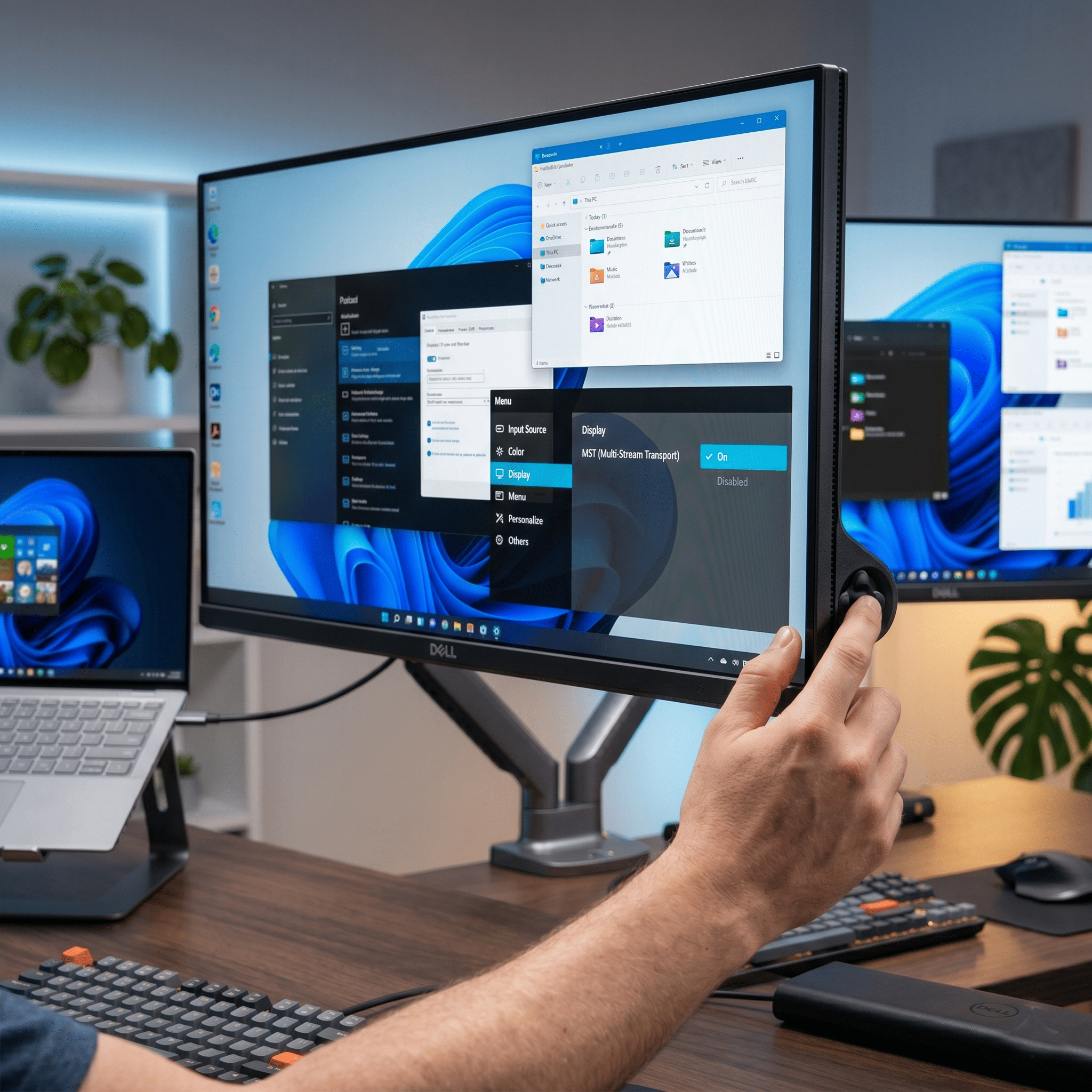
On Monitor A (the primary monitor), press the joystick or buttons on the back/bottom bezel to open the On-Screen Display (OSD) menu.
-
Navigate to the Display setting.
-
Scroll down until you see an option labeled MST or Multi-Stream Transport.
-
Change the setting from “Off” to “On”.
-
Note: You do NOT need to enable MST on Monitor B, as it is at the end of the chain.
Configuring Your Extended Display in Windows
Once the hardware is connected and MST is enabled on the primary monitor, your secondary monitor should wake up. However, Windows might initially set the monitors to duplicate (mirror) each other. Here is how to configure them to extend:
-
Right-click anywhere on your empty Windows desktop and select Display Settings.
-
You should see a diagram showing two or more rectangles representing your monitors.
-
Scroll down to the Multiple displays section.
-
Click the dropdown menu and select Extend these displays.
-
Windows will prompt you to keep the changes. Click Keep Changes.
-
Scroll back up to the monitor diagram. Click and drag the rectangles to match the physical physical layout of your monitors on your desk. For example, if Monitor 2 is physically to the left of Monitor 1, drag the rectangle for Monitor 2 to the left side in the diagram. Click Apply.
Step-by-Step Guide: Daisy Chaining via USB-C (Thunderbolt)
Modern ultra-thin laptops often lack full-sized DisplayPort or HDMI connections, relying entirely on USB-C. Many newer Dell monitors serve as “USB-C Hub Monitors,” which can charge your laptop, carry data, and transmit video all over a single cable.
If you are asking, “can I extend to Dell monitor by connecting each other using only USB-C?”, the answer is yes, provided the monitors support it.
-
Connect a high-quality, high-bandwidth USB-C cable from your laptop’s Thunderbolt/USB-C port to the designated USB-C upstream port on Monitor A.
-
Connect a second USB-C cable (or a DisplayPort cable, depending on the monitor’s output) from the USB-C downstream (or DP OUT) port on Monitor A to the input port on Monitor B.
-
Open the Dell OSD menu on Monitor A and ensure MST is enabled.
This setup is the cleanest possible desk arrangement, as it requires only one single cable plugging into your laptop to power dual screens and charge the device simultaneously.
[Placeholder for Image 3: A lifestyle tech shot showing a very clean, minimalist desk setup. A single USB-C cable connects a sleek laptop to the first monitor, and a second short cable connects the two monitors together. The screens show an ultra-wide, continuous wallpaper stretching across both displays, proving the “extend” feature is working.]
Bandwidth Limitations: Resolutions and Refresh Rates
While daisy chaining is incredibly convenient, it is bound by the laws of physics and bandwidth. A single DisplayPort 1.2 cable can only carry a finite amount of data.
When you extend your Dell monitors by connecting them to each other, all the video data for both screens is squeezing through that first cable connected to your PC.
DisplayPort 1.2 Bandwidth Limits:
-
You can comfortably daisy chain two 1080p (Full HD) monitors at 60Hz.
-
You can comfortably daisy chain two 1440p (QHD) monitors at 60Hz.
-
You cannot daisy chain two 4K monitors at 60Hz using DisplayPort 1.2. The bandwidth simply isn’t there. One or both monitors will drop to a choppy 30Hz refresh rate, or the second monitor won’t display at all.
DisplayPort 1.4 Bandwidth Limits: If your computer’s GPU and your Dell monitors support the newer DisplayPort 1.4 standard, you have much more breathing room. DP 1.4 features Display Stream Compression (DSC), which allows you to daisy chain two 4K monitors at 60Hz, or multiple lower-resolution monitors at higher refresh rates (like 144Hz for gaming).
Always check your Dell monitor’s manual to confirm which DisplayPort standard it utilizes before attempting a high-resolution daisy chain.
Troubleshooting Common Daisy Chain Problems
Even with the correct hardware, you might run into a few hiccups when setting up your MST chain. Here are the most common issues and how to fix them.
1. The Second Monitor Says “No Signal”
-
Fix A: Verify you plugged the cable into the DP OUT port on Monitor A, and the DP IN port on Monitor B. This is the #1 mistake people make.
-
Fix B: Double-check that MST is toggled to “ON” in the On-Screen Display menu of Monitor A.
-
Fix C: Ensure your computer’s graphics drivers are fully up to date. Outdated Intel or NVIDIA drivers can struggle with MST protocols.
2. Both Monitors Are Showing the Exact Same Thing (Mirroring)
-
Fix A: If you are on a Mac, remember that macOS does not support DisplayPort MST. You are limited to mirroring unless you are using a native Thunderbolt daisy chain.
-
Fix B: If you are on Windows, press the Windows Key + P to bring up the quick projection menu, and ensure “Extend” is selected instead of “Duplicate.”
3. The Screen Resolution is Blurry or Won’t Go Higher
-
Fix: You have likely hit your bandwidth limit. If you are trying to daisy chain two 4K monitors on an older DisplayPort 1.2 connection, the system will downgrade the resolution or refresh rate to make it fit. You may need to connect the second monitor directly to the PC to get full resolution on both screens.
If you want more details check here
Frequently Asked Questions (FAQs)
Q: Can I daisy chain three or more Dell monitors? A: Yes! As long as you have the bandwidth. With a standard 1080p setup over DisplayPort 1.2, you can typically daisy chain up to four monitors. Monitor A connects to B, B connects to C, and C connects to D. Just remember that every monitor in the middle of the chain (A, B, and C) must have a DP OUT port and have MST enabled.
Q: Can I use an HDMI cable to daisy chain my Dell monitors? A: No. Standard HDMI technology does not support the Multi-Stream Transport (MST) protocol required for daisy chaining. You must use DisplayPort or Thunderbolt/USB-C.
Q: Does my secondary monitor have to be a Dell? A: No. While sticking with the same brand ensures visual consistency on your desk, the MST protocol is a universal standard. As long as your primary Dell monitor has a DP OUT port, you can run a cable from it to the DP IN port of any brand of monitor (HP, LG, Asus, etc.) and it will work perfectly.
Q: Will daisy chaining cause lag in video games? A: For casual office work and media consumption, you will not notice any lag. However, for competitive gaming, daisy chaining can introduce a microscopic amount of input latency as the signal is processed by the first monitor before being passed to the second. Hardcore gamers should connect their primary gaming monitor directly to the GPU for the absolute lowest latency.
Conclusion
So, can you extend to a Dell monitor by connecting each other? The answer is a resounding yes, provided you are armed with the right knowledge. Daisy chaining via DisplayPort MST or Thunderbolt is one of the most effective ways to build a massive, productive extended workspace while completely eliminating the nightmare of cable clutter on your desk.
By ensuring you have a compatible graphics card, identifying your “DP OUT” ports, using high-quality cables, and remembering to flip the MST switch in your Dell monitor’s menu, you can double or triple your screen real estate in a matter of minutes.
If you want to look for more content CLICK HERE